
Defining Update Funding Sources Jobs
Bookings that fall within a specific physical distance from the geocoded location of a defined funding source can be updated with the funding source information.
Before you begin
Procedure
- Select a job from the grid.The scheduled job record settings are shown in the Job Schedule frame.
- Confirm the Agent Name PassScheduleAgent is defined for the job schedule.The selected agent determines the options that are available in the Job Type field.
- Click Job Data.The Job Data dialog box appears.
- Define the schedule type and date information:
- In the Job Type field, select Update Funding Sources. If no Job Types are available, confirm that an Agent Name has been selected in the Job Schedule frame of the Schedule Job Agent dialog box.
-
Click New.
The New Batch dialog box appears.
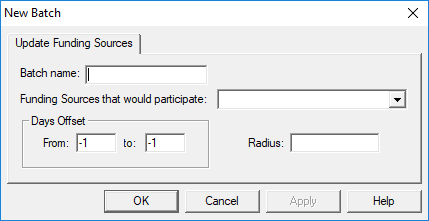
- Type the Batch Name for the job step.
-
Click the Funding Sources that would participate list and select
the funding sources to include.
These are the funding sources to be updated when the job is run.
-
In the Days Offset
From and to fields, type the offset for each
in relation to the present date.
Typing 0 indicates today's date. Typing 1 indicates tomorrow's date. Typing -1 indicates yesterday's date.
-
Type the Radius to be used.
The geocoded location of the funding source to be updated is the center point, and the radius pushes out from this point in all directions. Bookings that fall within this radius will be updated. The distance unit is defined in , on the Formats tab, under Distance.
- Click OK.
-
Click OK.
The Job Data dialog box closes.
- Click Save.