
About Schedule Booking Wizard
Schedule Booking Wizard is used to find scheduling solutions for a specific client booking.
This method of scheduling is called Single Insertion Scheduling.
Schedule Booking Wizard has three grids: Client Booking Info, Run Solutions, and Run Itinerary.
Client Booking Info shows the client booking information: the name of the client, the origin and destination of the booking, and the requested time of travel.
Run Solutions shows run solutions for the selected booking. The number of solutions depends on the maximum number of solutions the system is set to produce. To determine this, click the Solution Parameters button and view the Max. Sol field. In Schedule Booking Wizard, the run solutions are listed in order from most efficient to least efficient based on the priorities set in the Costing Weights. The first solution is usually the best solution.
Run Itinerary shows the run itinerary, listing all run events from pull-out to pull-in, of any run highlighted in Run Solutions view. To activate this feature, position your pointer over the bottom view and right-click. If it is activated, a check mark appears next to Run Events in Itinerary. If it is not activated, only the pick-up and drop-off details for the booking are shown in this view. You can configure columns in any of the Schedule Booking Wizard grids by right-clicking the grid and clicking Column Manager.
You can configure grid columns by right-clicking on the grid and then clicking Column Manager.
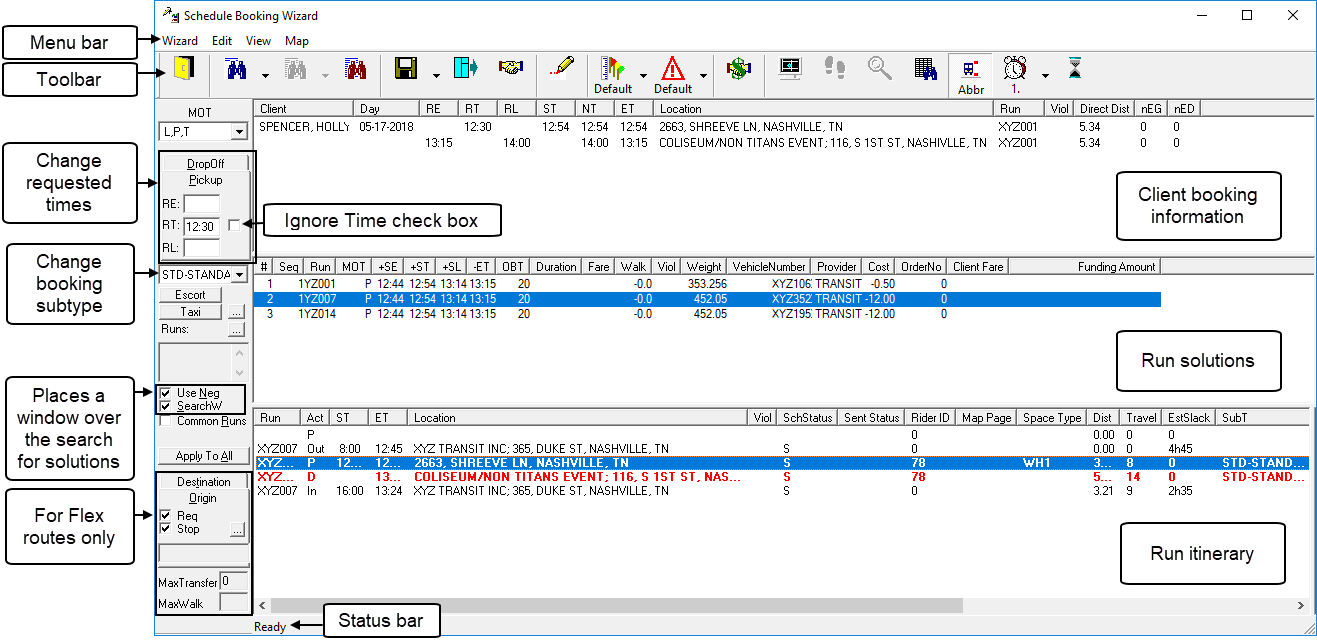
If you do not see the toolbar, status bar, or the filters in the left-side pane, they are probably disabled. In the View menu, ensure that Toolbar, Status bar, and Options bar are selected.
When the Schedule Booking Wizard is launched with a single booking, the parameter set and violation set used are set based on the Sched Multi Parameters settings (defined in ) and the ParaServiceId of the booking, when applicable.
You can set the Schedule Booking Wizard to automatically search for solutions when it is invoked. Click and set the Auto Find Solution property to Yes.
The Quick Schedule Booking Wizard is a pared-down version of the Schedule Booking Wizard. It can be accessed by holding the CTRL + SHIFT keys and clicking the Schedule button (from Trip Booking or Trip Administration).