
Scheduling Itinerary Trips
Itinerary trips are scheduled using the Schedule Booking Wizard.
Before you begin
About this task
For multi-leg itinerary bookings where one or more of the bookings have a specified duration of stay, use the Find Solutions for Itinerary command to find solutions for all bookings in a single operation. Scheduling multiple bookings in an itinerary can result in the best round trip solution for the client when negotiating trip solutions.
For other itinerary bookings (for example, trips that are linked together but occur on different days), schedule each booking one at a time using the Find Solutions or Find More Solutions commands as you would for bookings that are not part of an itinerary.
Procedure
-
In the Trip Administration grid, display and highlight at least
one of the linked trips.
You can show all linked trips in the Trip Administration grid but it is not necessary. The system always schedules linked trips together using the Schedule Booking Wizard or batch scheduling functionality.
-
Click the Schedule button.
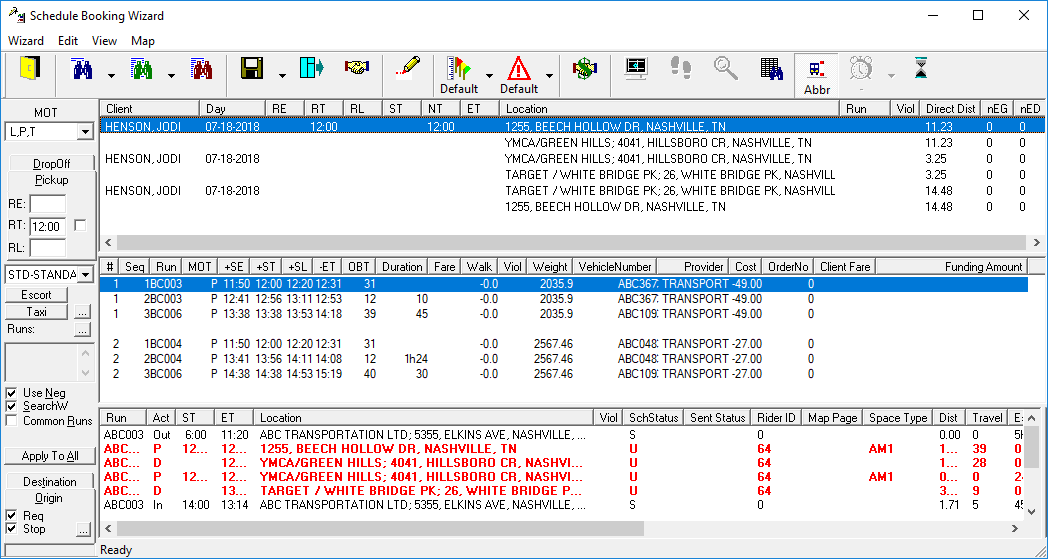
The Schedule Booking Wizard appears with all linked trips in the top view.
-
Click the Find Solutions for Itinerary button (green
binoculars):

Solutions are shown in the middle view. When you find solutions for a three-legged itinerary, solutions are generated in sets of three (the first solution for the first trip, the second solution for the second trip).Note: You can also limit your solution search to a single trip in the itinerary. Instead of clicking Find Solutions for Itinerary, select the specific itinerary trip to schedule and click the Find Solutions button:
-
Click the set of solutions you want.
For example, in the example above the first leg of the second solution (Run ABC003) is highlighted. This means that the first trip (which should start between 11:50 and 12:20) is scheduled to Run ABC003, as is the second trip. The third trip, which will return the client home (and is scheduled to start between 13:11 and 13:31), is scheduled to Run ABC002.
-
Click the Save Solution button:

The linked bookings are saved to the selected runs and the text in the top view is highlighted in blue. -
Click the Negotiate button.
The NT time is updated.