
Scheduling Multiple Bookings One at a Time
If you have multiple bookings to schedule, instead of going back and forth between the Schedule Booking Wizard and Trip Administration, you can select all bookings to be shown in the Schedule Booking Wizard.
Before you begin
About this task
Procedure
- Search for the bookings that need to be scheduled.
- Hold the CTRL key down and select each booking to be scheduled.
-
Click the Schedule button:

The Schedule Booking Wizard shows all selected bookings.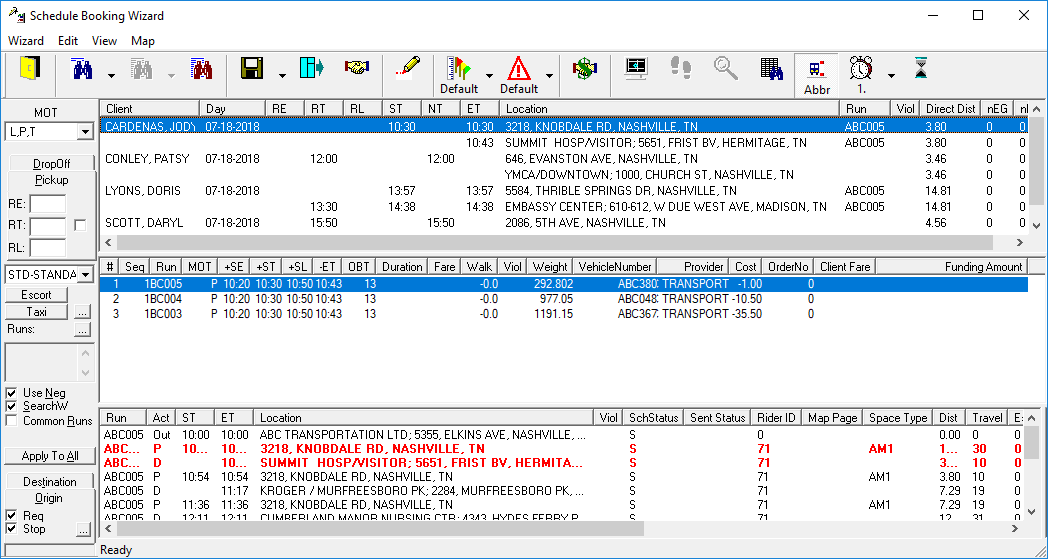
Bookings shown in the Schedule Booking Wizard are ordered by ItineraryId (in descending order), then BookingNum (this corresponds to leg order; that is, pick-up before drop-off and so on), then LDate (this is seen in the Day column in Schedule Booking Wizard), then TimeSort (the time used may vary; if NegTime is available, it is used; if NegTime is not available, then ReqTime (RT) is used; if ReqTime is not available, then a value of -1 is used and the booking will appear at the top of the list).
- Highlight the first booking and schedule it.
- Schedule any additional bookings.