
Scheduling Multiple Bookings to a Common Run
If you have multiple clients who want to have trips scheduled to the same run, you can use the Schedule Booking Wizard to search for run solutions that accommodate all bookings.
Before you begin
About this task
Procedure
- In Trip Administration, press and hold the CTRL key and highlight each booking you want to schedule.
-
Click the Schedule button:

The Schedule Booking Wizard shows all selected bookings. - Select the Common Runs check box.
-
Click the Find Solutions button:

In the middle pane, run solutions that accommodate all of the bookings are generated. - Optional:
For each booking, review the ranking, times, and costing weight for each run solution.
The first booking is selected by default.
When you select the next booking, the # column may differ for each booking. Compare # rankings for all bookings when selecting a run solution.
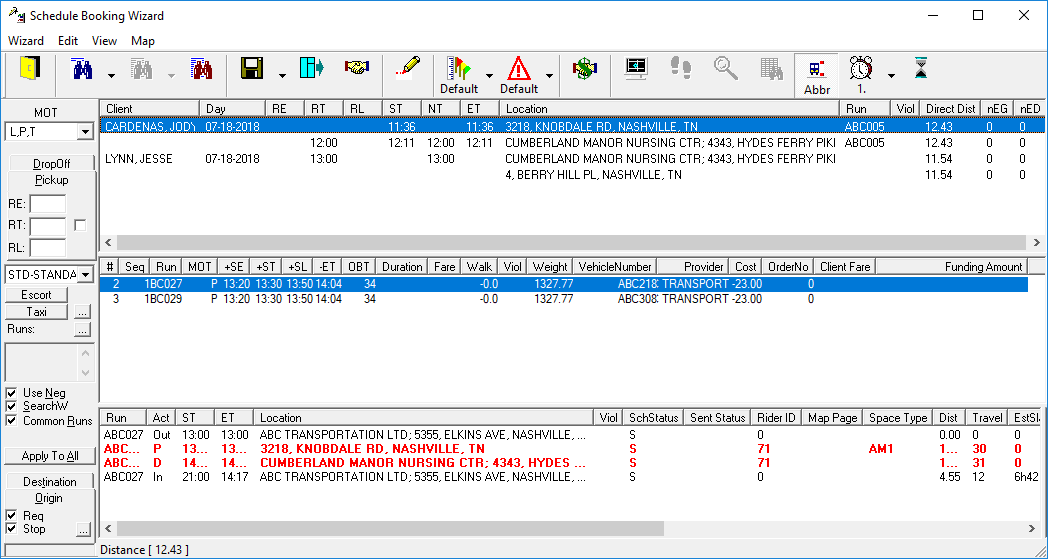
- In the middle pane, select a run solution.
-
Click the Save button.
The bookings in the top view change from black to blue text.
-
Once the client accepts the trip, select the first booking and click the
Negotiate button:

The booking text color changes and the NT time is updated. -
Negotiate each subsequent booking.
The bookings are scheduled to the run.