Color Coding Schedule Editor
Schedule Editor shows a great deal of information but you may only need to have a few pieces of information to stand out for quick and easy identification.
Procedure
- Click .
- Click the Tools tab.
-
Click .
These properties allow you to assign colors to the following items:
Clients who need special attention
Trips belonging to a specific booking subtype (for example, STD)
Trips of a specific schedule status (for example, No Show)
Other run activities (for example, out of service, break, pull-in)
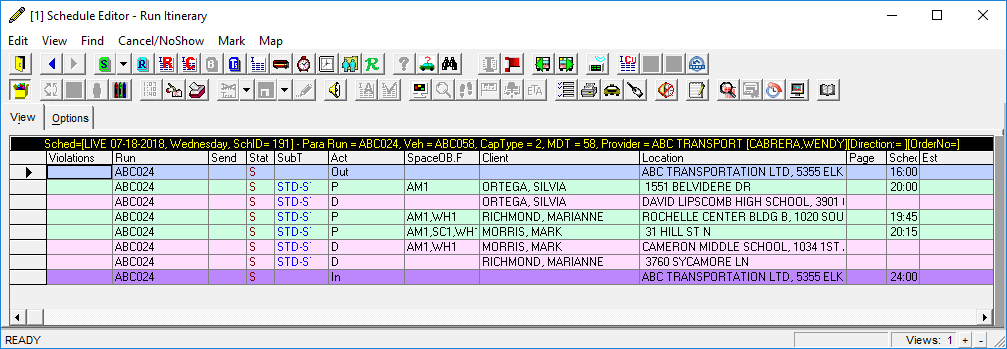
This example shows Schedule Editor when colors are assigned to:Trips with the booking subtype STD (this is set in the Booking Subtypes ancillary data).
Pull-outs colored in light blue (this is set using Color PullOut in the Activity Background section).
Pick-ups colored in light green (this is set using Color PU in the Activity Background section).
Drop-offs colored in light pink (this is set using Color DO in the Activity Background section).
Pull-ins colored in light purple (this is set using Color PullIn in the Activity Background section).
Client alerts colored in red (this is set using Client Alert under Color Settings).
- Scheduled trips (trips with an S status) colored in magenta (this is set using
Scheduled in the SchedStatus Color
section).