
Showing Multiple Views in Schedule Editor
Up to three views can be shown in Schedule Editor at one time.
Before you begin
About this task
When you have multiple views open in Schedule Editor, the highlighted title bar
indicates which Schedule Editor view is currently active.
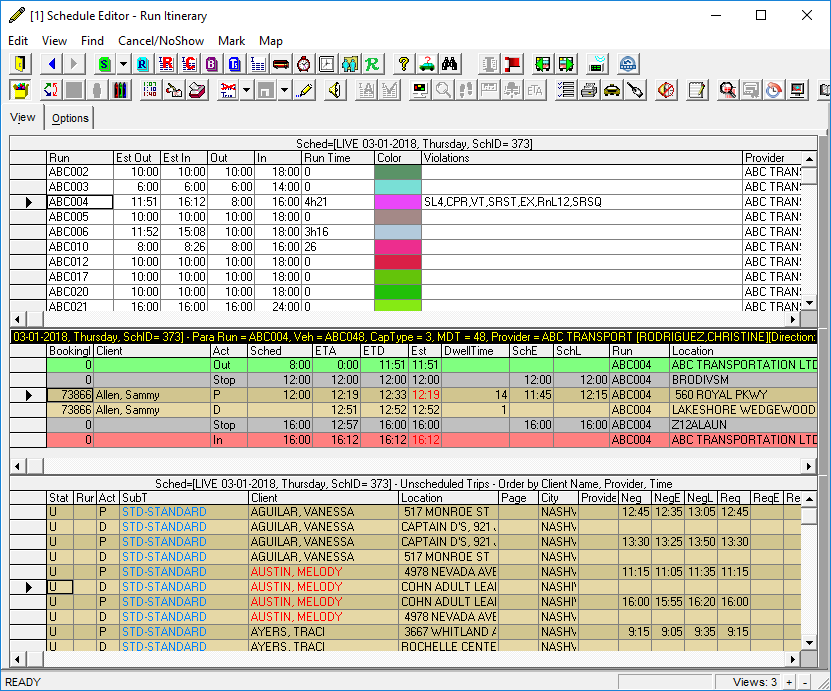
Using multiple views makes it easy to manually edit a schedule by dragging and dropping events (to rearrange events in a run, to move an event from one run to another, or to insert unscheduled trips into a run itinerary).
Procedure
Do one of the following:
- In the Views information area, click the +.

- Click and select a view to add. For example, Runs or Slack Time.