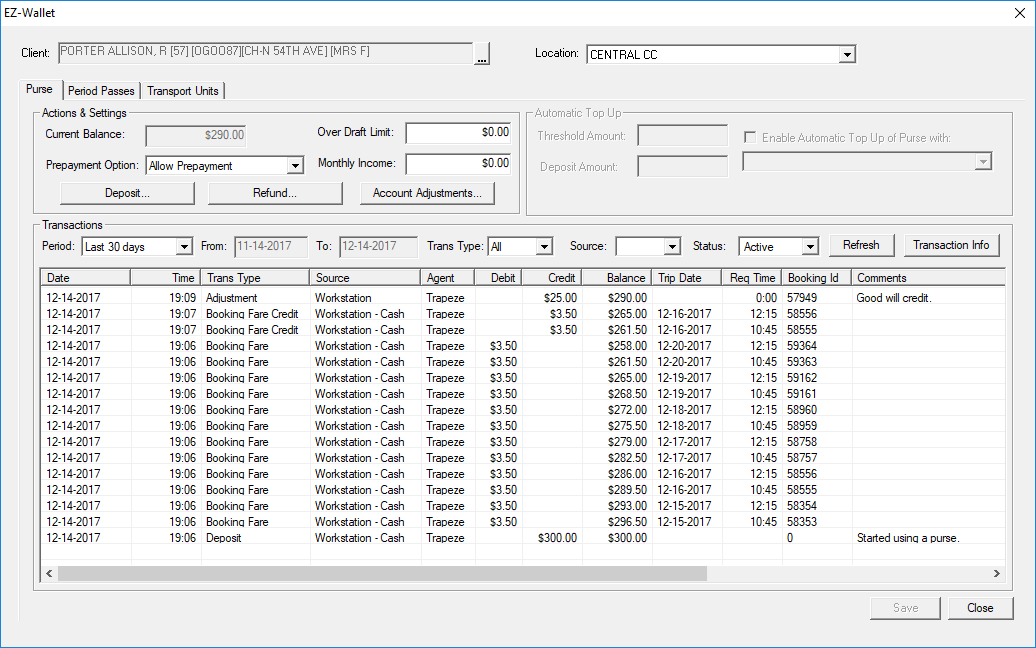
EZ-Wallet shows client transactions and allows client purse amounts to be adjusted.
Before you begin
Log in to EZ-Wallet.
About this task
Clients can purchase or be refunded for money deposited to their purse, for period
passes, or for transportation units such as tickets or tokens.Client faring in EZ-Wallet
respects the faring system properties defined in the Trapeze4 Workstation.
Procedure
-
Search for the client record to review.
Client information appears in EZ-Wallet.
-
In the Actions & Settings frame, do the following:
-
Select a Prepayment Option.
Prepayment options are Allow Prepayment,
Prepayment Required, or Prepayment Not
allowed. If Prepayment Not allowed is selected,
then the Prepayment field will not be shown in the
Detail tab of Trip Booking.
- Optional: Type the Over Draft Limit.
Once an purse has reached this amount, a warning message appears when a new
booking is made for the client. The amount set in this field overrides the overdraft
limit set as the default in , on the Profile tab, under .
- Optional: Type the client's Monthly Income.
This is the amount of income that the client receives each month.
-
Click Save.