
Viewing Client Fares in Trip Booking
A summary of the client's fare is available in Trip Booking.
Before you begin
About this task
The Fare Summary dialog box can be shown automatically when a trip is saved by enabling the user-defined property found in , on the Booking Screen tab, under Show Fare Summary on Save.
Procedure
- Click .
- Select the client, and specify the details of the client's trip.
-
In the Leg Detail frame, view the following information:
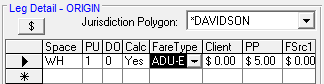
- FareType
- The fare type owed by the client for this trip.
- Client
- The amount the client owes.
- PP
- The amount paid by the period pass toward the total cost of the trip.
-
Click the Calculate Fare button:

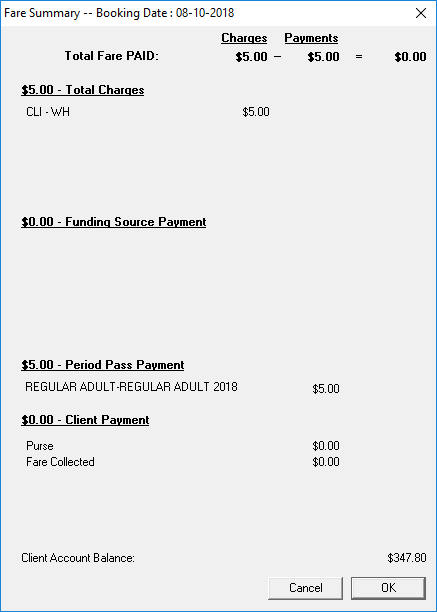
Clicking the Calculate Fare button recalculates the fare if the fare type has been changed. For example, if a reservationist is on the phone and the client asks for an updated price.The Fare Summary dialog box appears and lists additional faring information:- Total Fare PAID
- The price of the fare paid, broken down into total charges, total payments, and total owing.
- Total Charges
- An itemized list of charges for this trip.
- Funding Source Payment
- Funding sources for the client and the amount paid by each source toward the cost of the trip.
- Period Pass Payment
- The client's period pass name and the amount paid by the period pass toward the
cost of the trip.
Normally, a period pass would cover the entire cost of the trip.
- Client Payment
- An itemized list of other methods of payment and the amounts paid using each toward the cost of the trip.
- Purse
- The amount used from the client's purse toward the cost of the trip.
- Fare Collected
- The actual amount collected by the driver on this trip.
- Click OK.