
Adding Waits and Travels
When drivers travel to relief points to start work, waits and travels can be added to properly cost your runs.
-
On the Travels screen toolbar, click the
Waits and Travels button:
 The Waits and Travels dialog appears.
 -
Click Add.
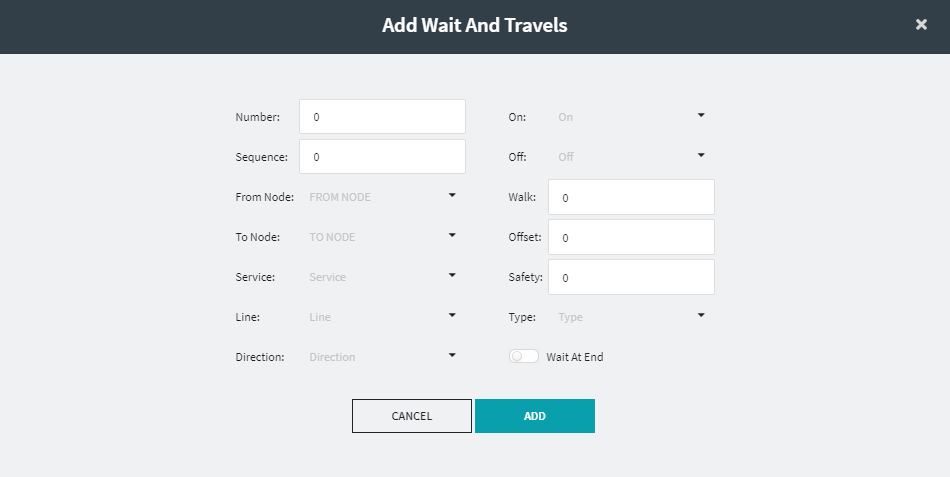
The Add Wait and Travels dialog appears.
-
Fill in or choose the appropriate values in the following fields:
- Number
- Sequence - Automatically filled in. If adding a Wait and Travel with an existing Num (Number), this will be automatically set to the next number in the sequence.
- From Node
- To Node
- Service
- Line
- Direction
- On
- Off
- Optional:
Click the appropriate value in the following fields as applicable.
- Walk
- Offset
- Safety
- Type
- Optional: To automatically place the wait at the end of the travel, turn on the Wait At End toggle.
-
Click Add.
If there is a travel with the same parameters in the current context, a message appears indicating that a duplicate travel exists. Click OK.