
Adding Labels
You can add a label to the Existing Label column.
- Search for the work order you want to modify.
-
In the Operations pane of the Details screen,
click Manage Labels.
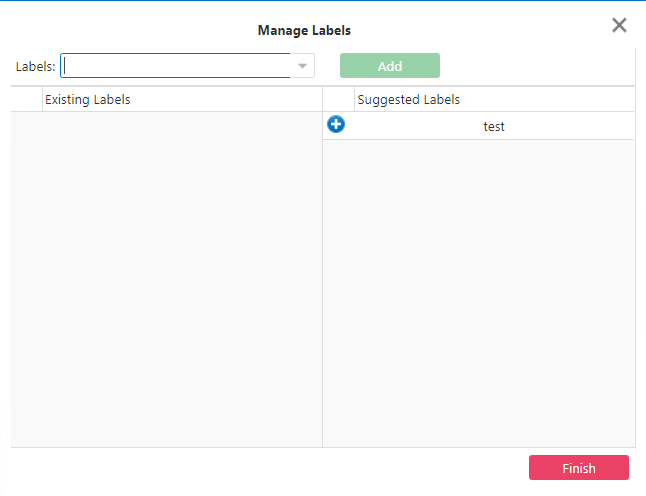
The Manage Labels dialog appears.
-
In the Labels field, enter the new label.
Note: If adding a set of words, enter them as one word, for example, "nospacesinbetween". If you enter words with spaces, you are reminded that the words must not have spaces between them.
-
Click Add.
The new label is added to the Existing Labels column.
- Optional:
To add a label from the Suggested Labels column, click the
New button (beside the label you want):
 The label is added to the Existing Label column.Note: Suggested Labels are those that have been created from labels of other cases with the same case type.
 - Optional:
To delete a label from the Existing Labels column, click the
Cancel button:
 beside it.
If the label was added from the Suggested Labels column, it is moved back to that column. If it is a label that you created, it is deleted.
beside it.
If the label was added from the Suggested Labels column, it is moved back to that column. If it is a label that you created, it is deleted. - Click Finish.