
Editing Work Orders
Bus Stop Manager allows you to edit or update specific components of the work order without having to open the entire Work Details screen. The Operations frame in the Details screen allows you to enter information on specific components as the work progresses.
- In the Filter Options pane, select the filters you want to apply in your search.
-
Click Find.
The work orders that match your selected criteria are shown on the right pane.The graphic shows some sample results of a search with the Priority filter selected. The number and list of cases available.

-
In the Operations pane of the Case Number
screen, click Edit.
The Editing Case Number screen appears.
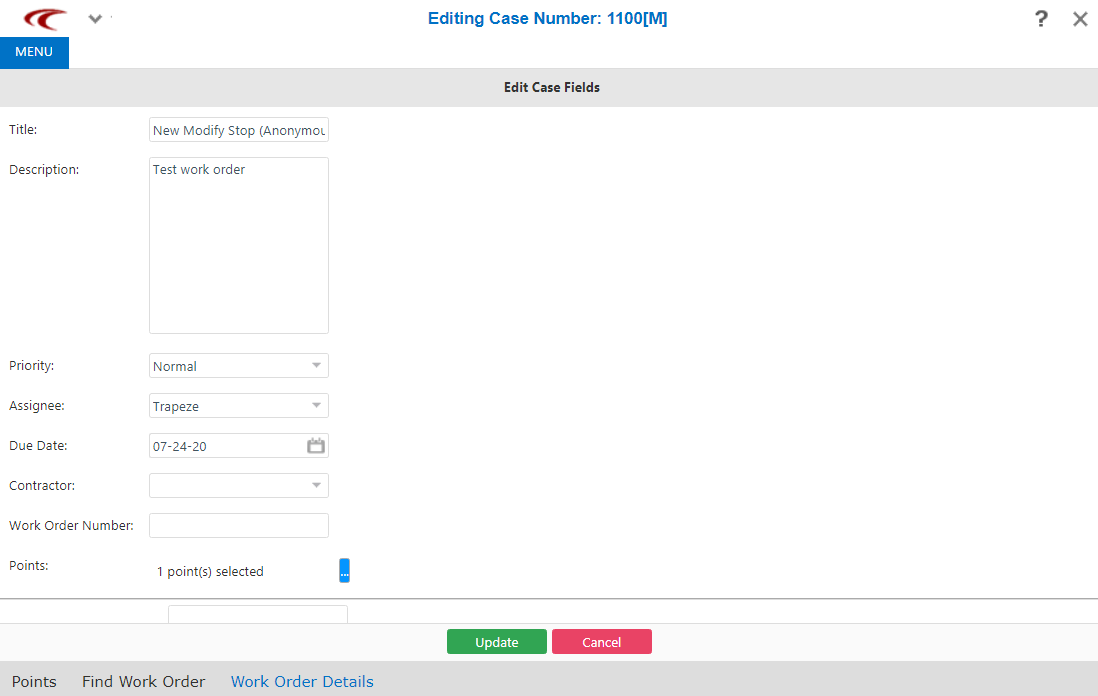
- Make the necessary changes to the appropriate fields.
-
To change or add points to the work order, click the ellipsis button on the
Points field.
A window appears showing the selected point and its representation on the map.
- Optional: In the Add Comment field in the Editing Case Number screen, enter any additional information that you want to include.
- Click Update.