Place text in quotation marks for exact match search results.
Adding Divisions
Create your Garages ancillary data before you create the Divisions ancillary data so
that you can assign garages to your divisions as you create them.
Click File > Ancillary Data > Fixed > Divisions.
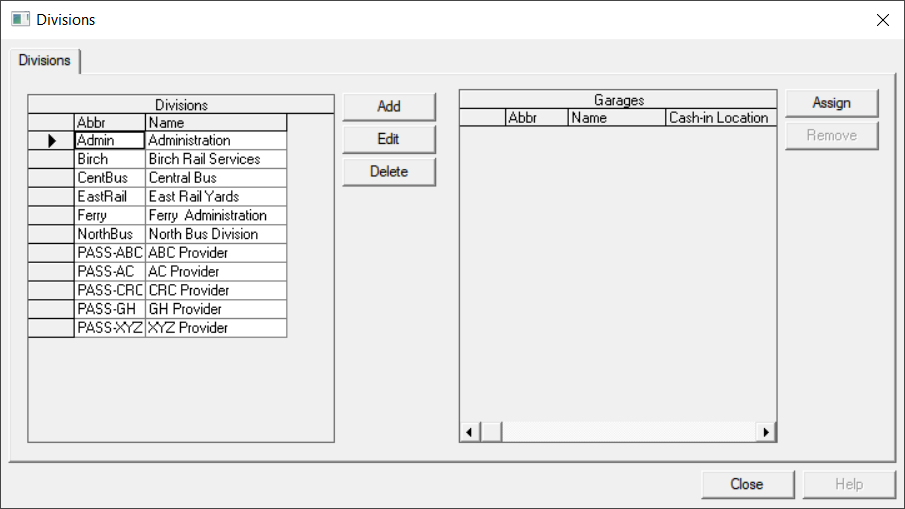
The Divisions dialog box opens.
Click Add.
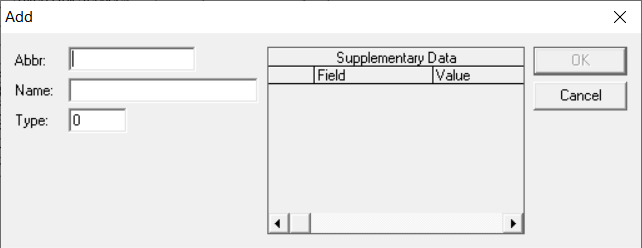
The Add dialog box appears. If any, the right
pane shows the supplementary data defined for your site.
In the Abbr field, type an abbreviated name for that
division.
In the Name field, type the full name. of the
division.
Optional: Before changing the number in the Type field used for
custom cost routines, consult your systems administrator or Trapeze
representative. Zero (0) appears as the default unless a number is required for
a cost routine. Caution should be used when changing an existing number.
In the supplementary data fields, type any site-specific supplementary data as
applicable.
Click OK.
The division is created and you are returned to the
Divisions dialog box.
(If Applicable) For divisions that have remote garages that do not have a cash-in facility, perform the following
steps:
In the Garages frame, select the appropriate
garage where a driver may unload his or her fare box from the
Cash-in Location drop-down list.
Click Assign. Runs are forced to be at the
cash-in location at some point during the day. The feature is used in
conjunction with the Use cash-in parameter in
Trapeze BlockBuster.