
Creating Through Lines
Through lines are used for reporting purposes only.
-
Click .
The Lines dialog opens.
- On the Lines tab, select a line.
-
Click Edit.
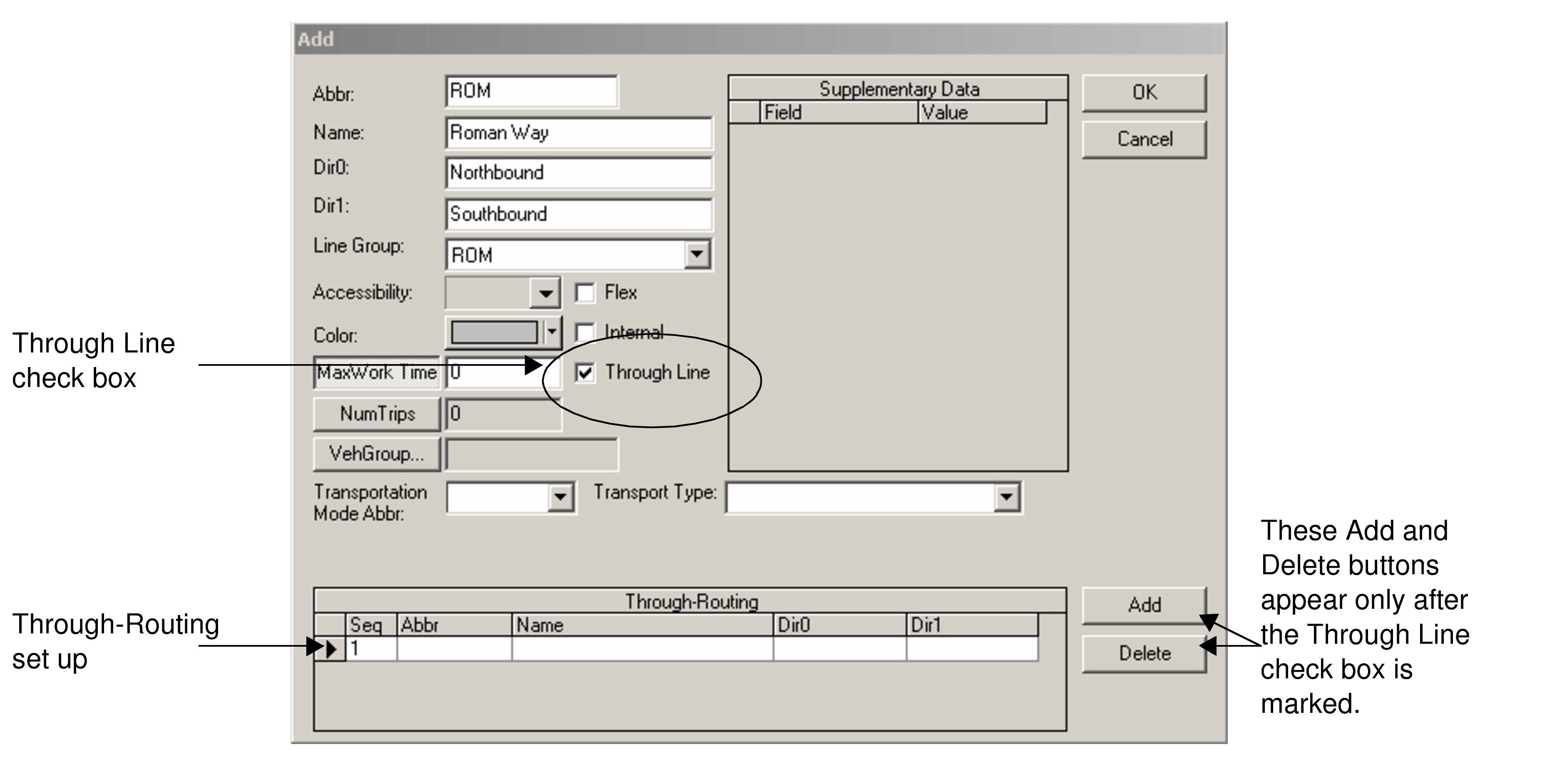 The Edit dialog opens with the Through Line option.
 - Select the Through Line checkbox. The Through Routing frame appears at the bottom of the dialog.
- Click Add. A row appears in the Through Routing frame. A number automatically appears in the Seq field.
- In the Abbr field, type an abbreviation for the first line of the through route. You must type the first line even though it already appears in the fields in the upper portion of the dialog.
- In the Name field, type the name of the line for the first line of the through route.
- In the Dir0 and Dir1 fields, type the directions that are being through-routed, for example, North and South.
- For the line that goes with the first line to make the through route, repeat steps 7 to 9.
- Click OK.