
Inserting Lines into a Line Group
On the Line Groups tab, expand a group by double-clicking on it or select the Expand All checkbox at the bottom to show at once what lines are in each group. You may now move lines from one group to another to reassign them.
Note: This is another way to effectively interline existing trips to another Line Group.
- On the Line Groups tab, highlight the group that to which you want to move a line.
-
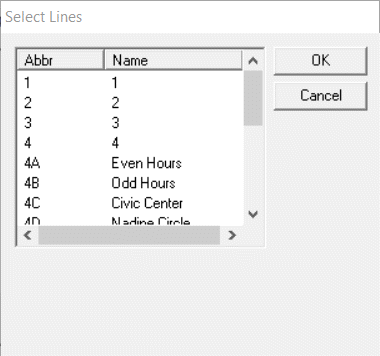
Click Insert Lines. The Select Lines
dialog appears. It shows you a list of lines that are available.
-
Click the one that you want to insert or press CTRL to move multiple lines to this
group.
If the line you are moving already has trips, the Change Trips' Line Groups dialog appears. See Moving Trips to Another Line Group for more information.
- Click Save.
-
Click Close.
You now need to create your actual lines (routes), which become the basis for entering your stops, nodes and eventually building trips, all of which are discussed in further detail in this guide.