
Loading Block Scenarios
Loading block scenarios is similar to loading block files. Block scenarios are saved in the database while the block files are saved in your file directory.
- In the Block Scenarios dialog box, select the scenario that you want to load.
-
Click Load.
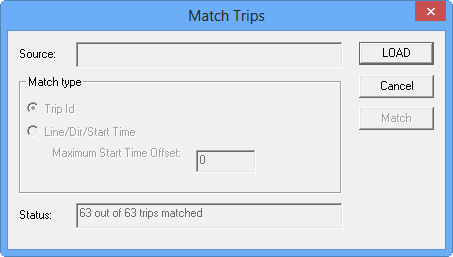
The Match Trips dialog box appears.
-
If the Status field indicates all trips are matched, click
Load.
Trips are considered matched if their lines, patterns, services and service groups, exceptions, and start times are the same. If all the trips are matched as shown in the Status field, the fields in the Match type frame appear shaded.
-
If some trips are not matched as shown in the Status field,
depending on the data you require, perform one of the following steps:
- To load files with the same context as the current context, leave the Trip Id option selected.
- To load files from a different context, for example, a different sign-up period, select Line/Dir/Start Time.
-
In the Maximum Start Time Offset field, type an appropriate value.
After selecting any of these options, click Match. - In the Block Scenarios dialog box, click Close.