Adding and Viewing Check Data Manually
When checks have been performed and the check data has been submitted, you are ready to type the check data into the system and view the ride check data of a selected trip.
Make sure that you have defined the correct sign-up period in the Set Mode dialog box. (Click or press F3).
The Edit option allows you to:
- View specific data collected during an individual check (the Trips tab only displays averages or total values).
- Type check data into the system manually.
- Edit existing check data.
-
Do one of the following steps:
- Click .
- Click the Edit button:
 .
.
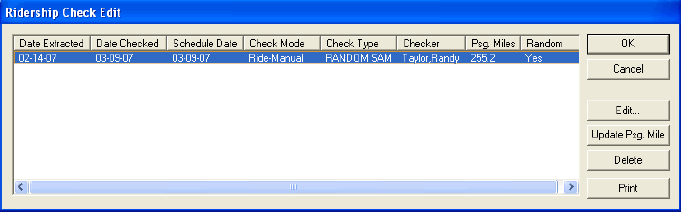
The Ridership Check Edit dialog box appears. It lists all the extractions that have been created for the selected trip.