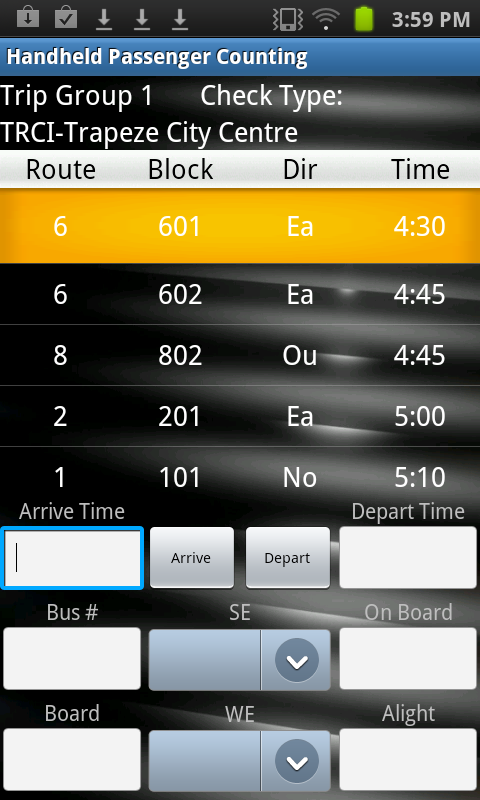
After you have extracted trips for point check data and downloaded them to a
hand-held computer, you are ready to type point check data.
You can also enter point check data in hand-held computers with the Android mobile
operating system.
-
On the Trapeze front screen of the hand-held computer, tap Point
Check.
The screen shows a list of data files.
-
Select the data file you want to open. If only one point check assignment was
downloaded to the hand-held computer, only one item is shown on the menu.
-
Tap OK.
The the top pane shows the trip groups and the next pane shows the trips
of the selected trip group.
-
Select the appropriate trip group, and then select the trip you want to check
first.
-
Enter the Arrival Time by doing either one of the following steps:
- Tap the Arrive Time field. The system time is
shown in the field.
- Tap the field Arrive Time field and using the
number pad, enter the time using military time (measured in hours numbered
to twenty-four) in the format hh:mm or hh:mm:ss including the colon, for
example, 18:30.
-
Tap the Bus # field, and using the number pad, enter the
number of the vehicle.
-
Tap the Board field and using the number pad, enter the
number of passengers who boarded the vehicle at the stop.
-
Tap the Alight field, and using the number pad, enter
the number of passengers who left the vehicle at the stop.
-
Tap the On Board field, and using the number pad, enter
the number of passengers who remained on board the vehicle at the stop.
- Optional:
To add a comment, click the field showing the appropriate route direction, and
then choose from the pre-defined comments in the Comments list. (The sample
graphic shows the fields labeled with the acronyms of the route directions: Ea
and No.)
The comments in the list are created as ancillary data.
-
Enter the Depart Time by performing either one of the
following steps:
- Tap the Depart Time field. The system time is
shown in the field.
- Tap the Depart Time field and then, using the
number pad on the screen, enter the time. The time must be entered using
military time (24-hour clock) in the format hh:mm or hh:mm:ss, including the
colon.
-
In the top pane, select the next trip scheduled to arrive at the point to type
all the appropriate check data.