
Customizing the Smart Menu
Commands available in the right-click menu can be customized based on user preference.
-
In the Vehicle Assignment screen, right-click a record and
select Customize Smart Menu.
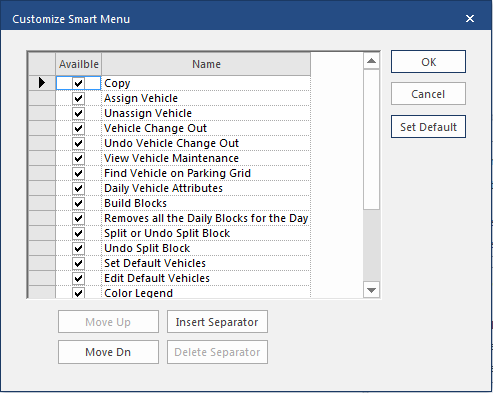
-
Select the checkbox for each command to appear in the right-click menu.
Commands appear in the order in which they appear in the menu.
- Optional: Use the Move Up and Move Dn buttons to adjust the position of commands in the menu.
- Optional: Select a command and then Insert Separator to add a horizontal line above the selected command in the smart menu.
- Optional: Select a separator and then Delete Separator to remove it.
- Optional:
Select Set Default to return the smart menu to its
original settings.
This is useful if you don't see an expected option in the Name list.
- Select OK.