
About Vehicle Assignment
The Vehicle Assignment screens lets you to assign vehicles to blocks and manage maintenance records.
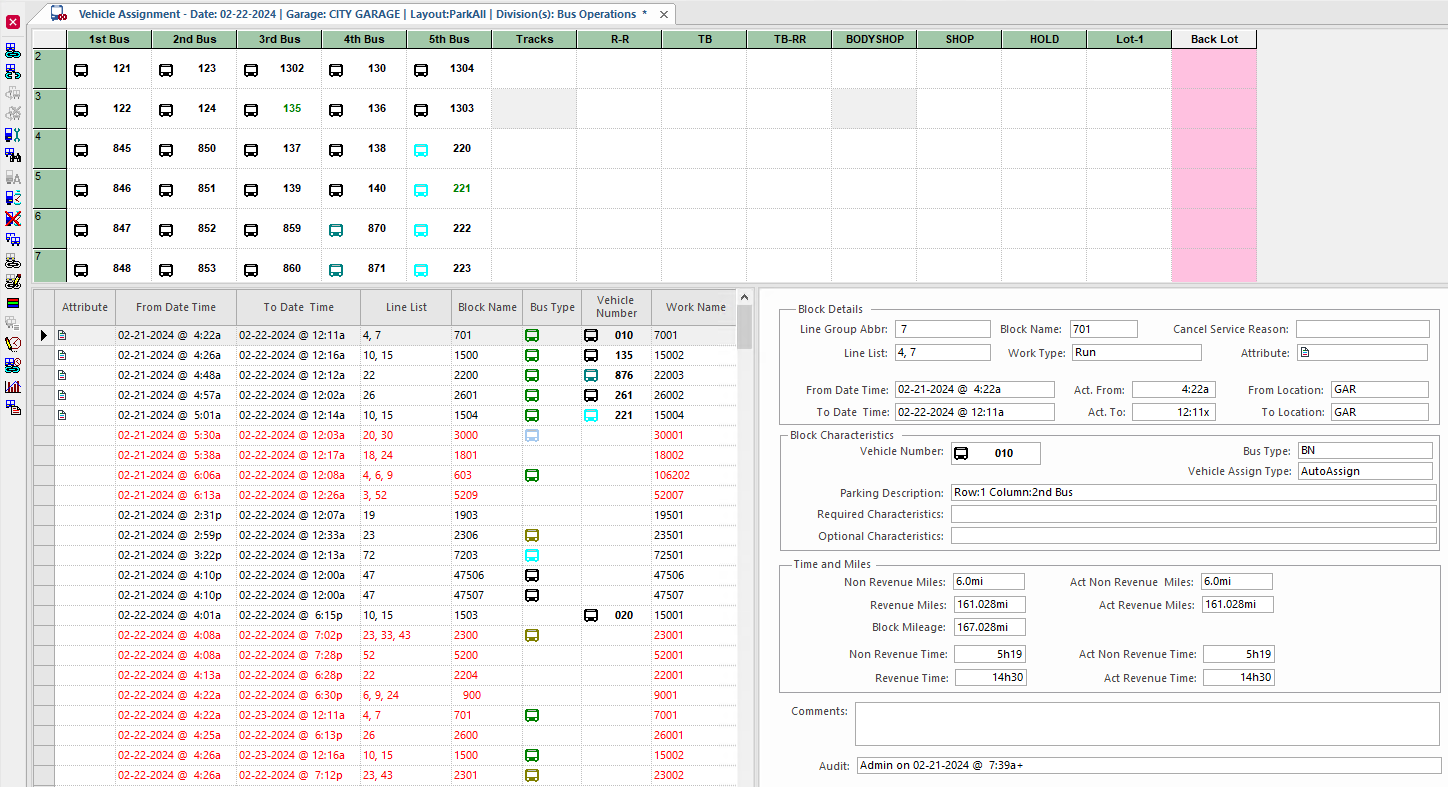
In the Vehicle Assignment screen, in the top pane you can see vehicles in the parking grid for an activated day. You can add and move vehicles in the grid and flag vehicle characteristics. Hover over a vehicle in the grid to see a tooltip with detailed information. (Note that the Enable Tool Tip after x seconds option in the screen Context (F3) must be set for this feature to work.)
- Vehicle Assignment. Shows blocks for the specified day and garage and vehicles assigned to the blocks. A block is a series of runs a vehicle performs on an operational day.
- Vehicle Maintenance. Shows maintenance records for the specified day and garage. Vehicles aren't assigned to blocks when they're in maintenance.
- Train Consists. Shows trains and their associated rail cars. This tab is only visible if your agency manages trains and rail cars.
| Button | Label | Description |
|---|---|---|
 |
Assign Vehicle | Assigns vehicles to blocks. Vehicles can also be assigned by dragging and dropping vehicles to blocks. |
 |
Unassign Vehicle | Unassigns vehicles from blocks. |
 |
Vehicle Change Out | Changes the vehicle currently on a block. |
 |
Undo Change Out | Undoes the vehicle change on a block. |
 |
View Vehicle Maintenance | Shows maintenance records. |
 |
Find Vehicle |
In the parking grid pane, searches for vehicles by vehicle number. In the blocks pane, you can highlight a block and then search for the next available vehicle, according to type needed, as per the sequence mode of the parking layout. In the Vehicle Assignment screen, the Find Vehicle command uses the pull-out order in which vehicles are assigned to blocks to determine the next most convenient vehicle to pull out of the garage |
 |
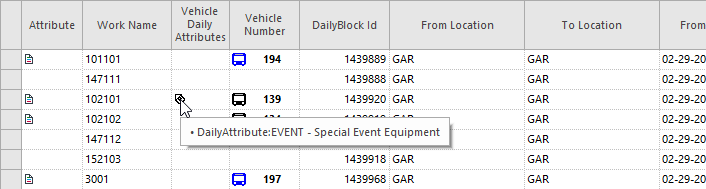
Daily Vehicle Attributes | Assigns a temporary attribute to a vehicle. |
 |
Build Blocks | Rebuilds blocks as an independent action after a day has been activated. |
 |
Remove Blocks | Removes existing blocks. |
 |
Split or Undo Split Block | Divides a single block, or removes a split and joins adjacent block pieces. |
 |
Set Default Vehicles |
Establishes assigned vehicles in a block as the default setting for a future date when the correct sign-up and service group conditions are met. Trapeze OPS automatically assigns the default vehicles to the blocks. If the vehicle isn't available—due to a maintenance activity, for example—the default vehicle isn't assigned. |
 |
Edit Default Vehicles | Opens a dialog to change the default vehicle for the selected record (block and line). This command isn't available if the block is split. |
 |
Color Legend | Opens the Color Legend dialog to show the meaning of colors used in the Vehicle Assignment screen and the Vehicle Requirements chart. |
 |
View Block Comments | Shows comments about the block that were entered in Trapeze FX. A blue bus icon appears in the Attributes column of the blocks pane to indicate there are comments. |
 |
Edit Block Times and Distance | Changes block times and distance for a selected block. |
 |
Auto Assign Vehicles |
Opens the Assignment Time Range dialog to match up block requirements with vehicle characteristics and assign suitably matched pairs. Warnings are shown if any maintenance conflicts exist. The system continues to assign until it runs out of vehicles or blocks to assign. |
 |
Show Vehicle Chart | Shows a chart of vehicle requirements throughout the day to help determine how many vehicles are needed at specific times of the day and compare them with how many vehicles are actually available. |
 |
Block Activity Log | Records when vehicles are assigned to or unassigned from blocks. The log also records when vehicle change outs occur or are undone. |
 |
Transit Master Playback | Opens AVL playback to show previous work/vehicle assignments. Requires that Transit Master Playback is installed. |