
Using Smart Filter in Vehicle Assignment
Vehicle records visible in the Vehicle Assignment screen can be refined using the Smart Filter.
- Open the Vehicle Assignment screen and set the Context (F3).
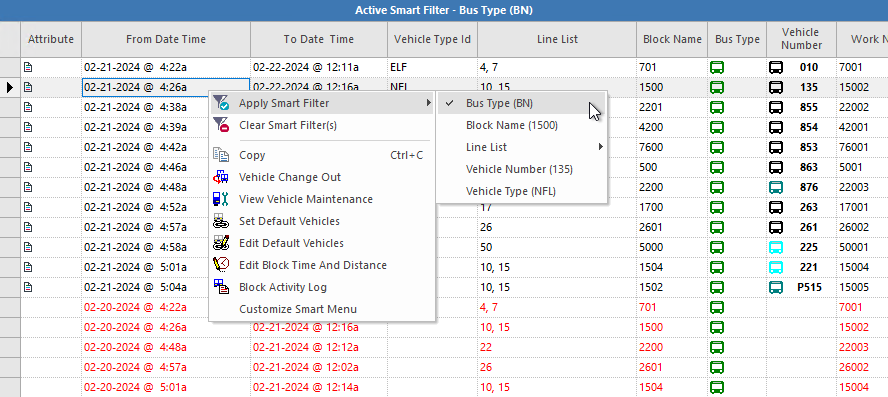
- Select the vehicle record to use as the basis for your filter, right-click, and select Apply Smart Filter.
-
Select the field to filter by.
Only work items that match the field value of the selected record are shown. In this example, filtering was done for a the BN bus type. Only records including that bus type are shown in the filtered view.
- Optional:
You can further refine the items shown by selecting a record (it does not have
to be the original record) and choosing another filter.
Check marks indicates active filters.
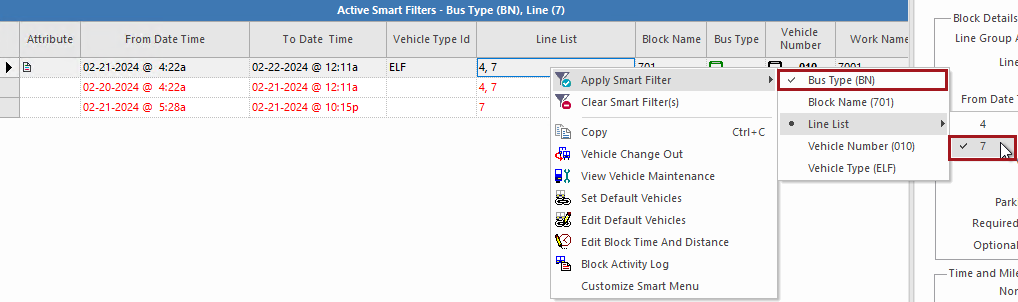 Select an active filter to remove the filter and clear the check mark.
 - Right-click and select Clear Smart Filter(s) to restore the screen to the original view.