Adding Sections to Scorecard Templates
After you create a template, you can add sections to it. Sections let you group scorecard information.
- Open the Score Card Templates screen.
- Right-click in the detail pane and select Add New Record.
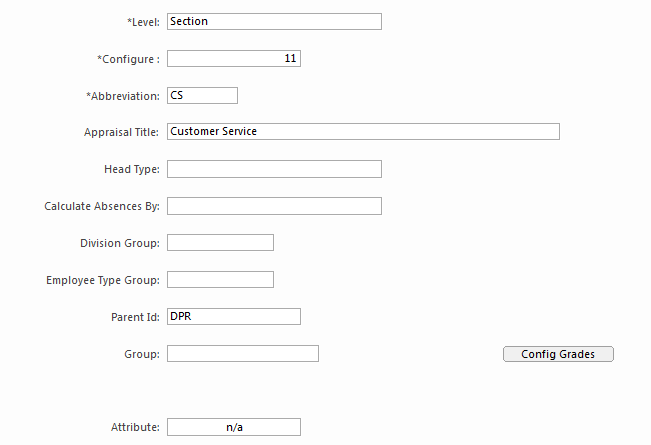
- In the Level field, select Section.
-
In the Configure field, enter an identification
number.
Scorecard sections appear in template in order based on this number. If your template has an identification number of 1, entering 11 here would make this the first section. The second section could be identified as 12.
-
In the Abbreviation field, enter an identifier.
The identifier can have a maximum of eight characters.
-
In the Appraisal Title field, enter a name for the
section.
This name appears in the section screen of the Employee Score Card Wizard.
- In the Parent ID field, select the ID of the template where the section should appear.
-
Select Save: