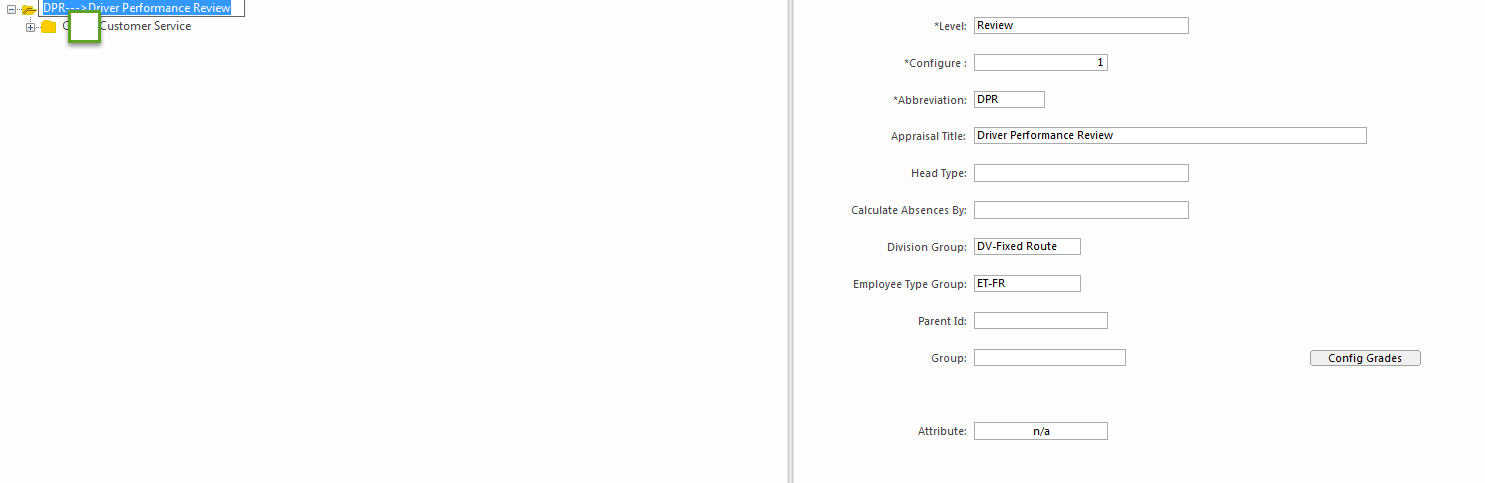
Creating Scorecard Templates
Templates specify the division and type of employee for whom it's used.
- Open the Score Card Templates screen.
- Right-click in the detail pane and select Add New Record.
- In the Level field, select Review.
-
In the Configure field, enter an identification
number.
This number can't be used in another template or template component.
-
In the Abbreviation field, enter an identifier.
The identifier can have a maximum of eight characters.
-
In the Appraisal Title field, enter a name for the
scorecard template.
This title appears in the Profile field when you run the Employee Score Card Wizard for employees using this template.
- In the Division Group field, select the division for employees using this template.
- In the Employee Type Group field, select the group of employee types using this template.
-
Select Save: