Editing Extra Pay Records
Update extra pay records as needed.
- In the Client Shell, open the Extra Pay Management screen and set the Context (F3).
- Select an extra pay record.
-
In the screen toolbar, select Edit Extra Pay:
 The Extra Pay - Edit Approval Status dialog appears.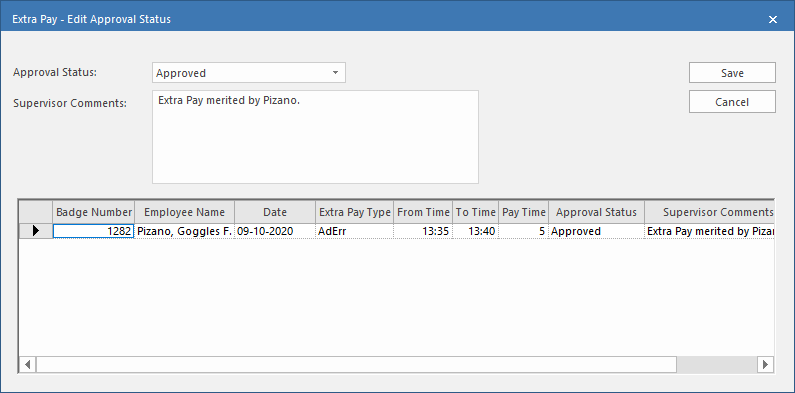
- Select an Approval Status and enter any Supervisor Comments.
- Select Save.
- Optional:
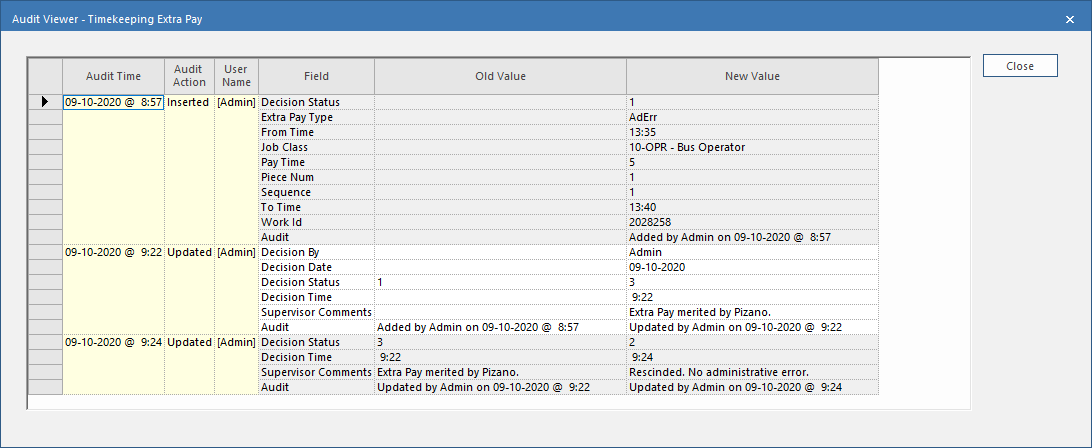
To see approval history, right-click on an extra pay record and select
Audit Viewer.
To see audit history the security key must be granted.The audit viewer shows any changes made to the record.