
Entering Allowance Changes for Multiple Employees in the Client Shell
Enter allowance changes for multiple employees as needed.
- In the Client Shell, open the Employee Profile screen and set the Context (F3).
- Select an employee whose allowance will change.
- Select Allowances.
- In the detail view, right-click and select Add New Record.
- Select an Allowance Type.
- Enter the date and time in Transaction Date and Transaction Time.
- Enter the allowance entitlement amount in Transaction Amount.
- Select Save.
-
Select the allowance record in the list view and then Allowance
Entitlements:
 The Generate Allowance Entitlements dialog appears.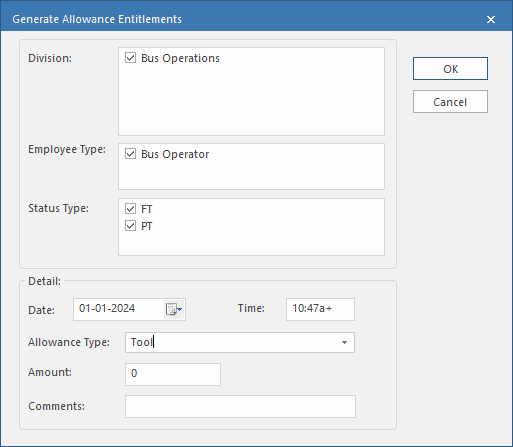
- Select the Division(s) to receive the allowance.
- Select the Employee Type(s) to receive the allowance.
- Select the Status Type(s) to receive the allowance.
- The Date and Time are set to the current date and time. You can change them if needed.
- The Allowance Type is set to the entry you originally made.
- Enter the Amount of the allowance.
- Enter any Comments.
- Select OK.