
Starting and Stopping Services
You can control when a Voice Gateway service starts and stops.
-
On the Provisioning tab, click .
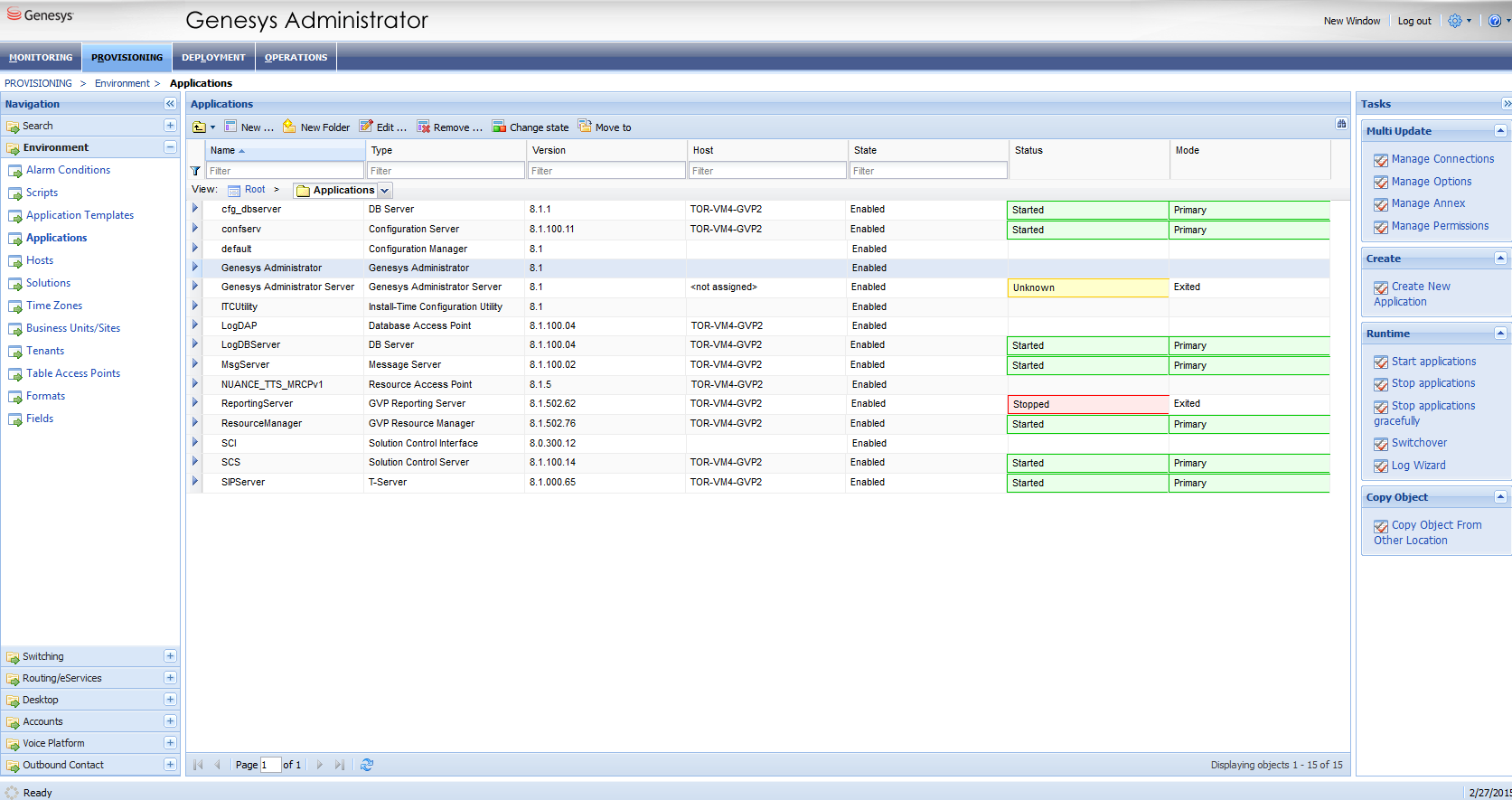
The list of servers and services appears in the Applications pane. Following the color codes described in Status Colors, the following sample screen shows the items that have been started (green). One item is Unknown (yellow) while another is Stopped (red).
-
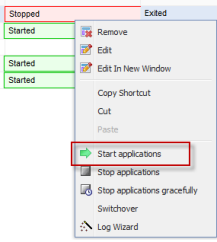
Select the server or service that you want to start or stop, and then right-click. For
example, to start the service marked Stopped, right-click the
Status field and on the menu, click Start
applications:
A message prompts you to confirm the start action.
The Stopped status indicator changes to Initializing, which is in yellow. If the service is successfully started, the Status and Mode fields of the selected service change to green.