
Test 6: Viewing Messages
The purpose of this test case is to demonstrate that users are able to view messages and their status.
-
Perform one of the following steps:
- Click View Messages.
- Click Messages on the upper-right corner of the screen.
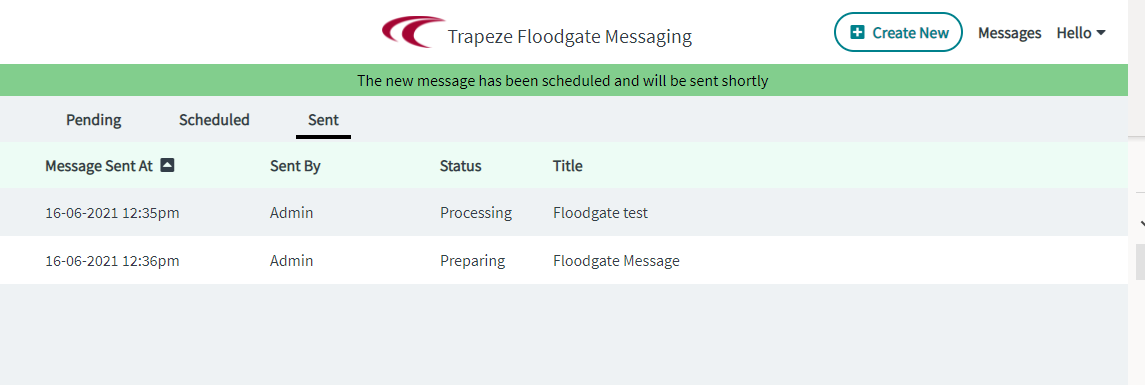
The messages on the Pending tab are shown by default. These messages are still considered drafts and have not yet been scheduled. -
Click the Sent tab.
- Optional:
To view the delivery status of a message, select and hold (or right-click) the
message. In the shortcut menu, select View Messages, and
in the Messages dialog, click the Delivery
Status tab.
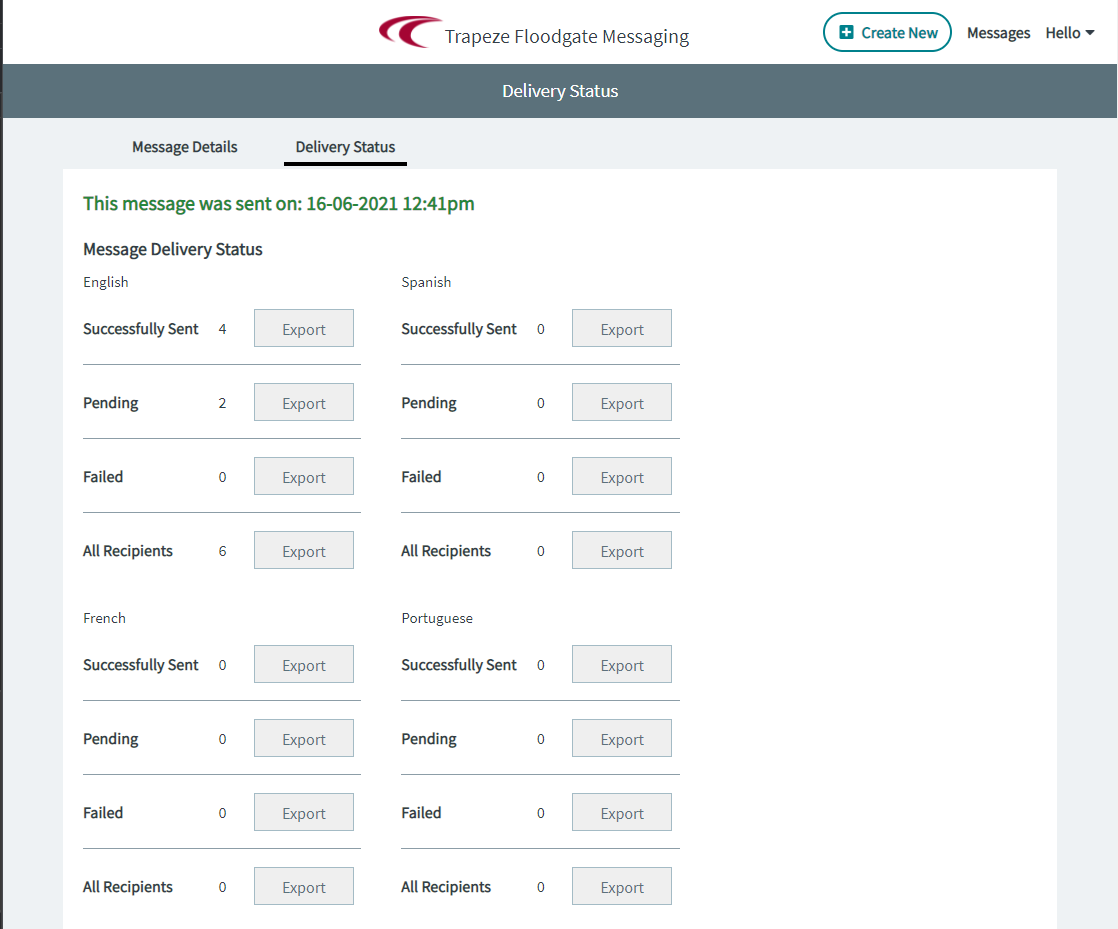
The tab shows the number of successful, pending, failed and total deliveries by language. The following graphic shows some sample delivery status data of a selected message:
-
On the Sent tab, select and hold (or right-click) the
message you want to view, and then select Review Message
.
The Review Messagepage appears. This is the same page that appears after you click Next when creating messages.
- Optional:
To sort the messages in ascending or descending order, click the arrow icon on
the Message Created At column heading.
The upward arrow icon indicates an ascending order while the downward arrow icon indicates a descending order.
- Click Back to review other messages.