
Grouping User Records
Ideally, a user should only have one user record and user record ID. In some instances, a user may have several records due to errors in data entry, for example, name is misspelled, different addresses, name of another family member entered instead of actual user.
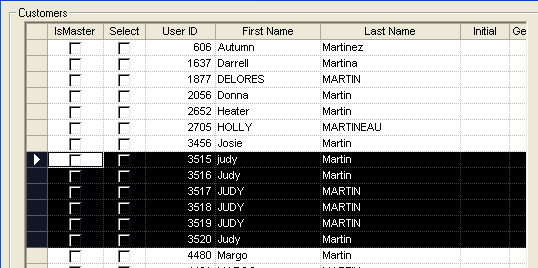
A check of the records show that they belong to the same person. The phone numbers are the same and the address is the slightly different: 900 W BRADY STREET APT 117 in one record and as 900 West Braid Apt 117 in another record. To streamline search efforts, you can group these records in the Customer dialog box and merge them later in the Registered Users screen.
To use the Group feature, there must be at least two or more records of a single user.
-
In the Customers pane, select the record that you want to use as
the master record and select the IsMaster check box.
The check box in the Select column beside it is automatically selected.
- Select the check boxes in the Select column beside the other records of the same user.
-
Click Group.
A message appears asking you to confirm the group action.
-
Click Yes.
A message confirms that the records have been grouped.
- Click OK.
When you search for the user record, only the selected master record is shown on the Customers pane. If you have access to the Registered users screen, you can proceed to merge the user records.