You can use a combination of filters in the Remarks Context
dialog to define the remarks that are displayed.
The following table describes the fields in the Remarks Context
dialog:
Option
Instructions
Importance
Degree of importance of the remark: high, low, normal
Remark Type
Types of remarks you want to view.
Validity
Date and time range of the remarks you want to view. The current
date and time are shown by default. To set a range of by date and time, click the
spin controls beside the two date and time fields.
Service days
Days of the week you want to view. The abbreviation of the
selected days are shown in this field.
Category
Categories of remarks you want to view. Select the category and
click Add. The selected category is shown in the blank field
in the lower right section of the dialog.
Search Text
Key words that may be in the remarks. (The text used is shown in
the field in the main toolbar in the Remarks dialog.)
The following table explains the buttons that are shown beside the
Validity fields:
Name
Button
Description
Valid
Shows non-expired remarks only.
Expired
Shows expired remarks only.
Pending
Shows pending remarks only.
Note: The system properties, Show Expired
Remarks and Show Pending Remarks control
whether expired and pending remarks are shown by default; however, the commands
listed here override the property settings for the duration of your current
INFO-Agent session.
Unread
Shows unread (new) remarks only.
Read
Shows read (only) remarks only.
Note: All unread and read remarks are shown when
neither button is clicked.
Note: All non-expired, expired and pending remarks are shown when none of the buttons are
clicked.
The Agency information is included in the context
field if in a multi-agency environment.
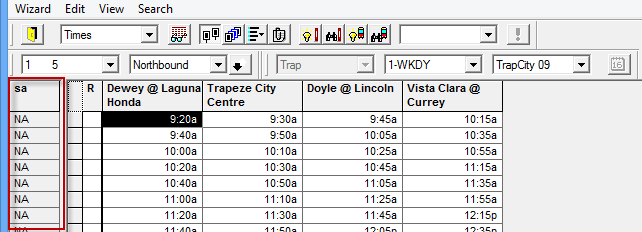
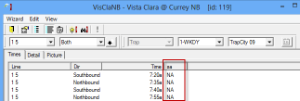
The following graphics show the
Schedule Adherence columns in the Headway Wizard
and in the Show Stop grids:
To view logical remark set results or filter remarks without opening the Remarks
Context dialog:
Click a combination of expired/non-expired and read/unread commands.
Click the context buttons at the bottom left corner of the
Remarks dialog.