
Creating Remarks
You can add a remark that applies to lines, patterns, trips, or vehicles.
-
Click Remarks:
 The Remarks dialog appears.
 -
Click Add:
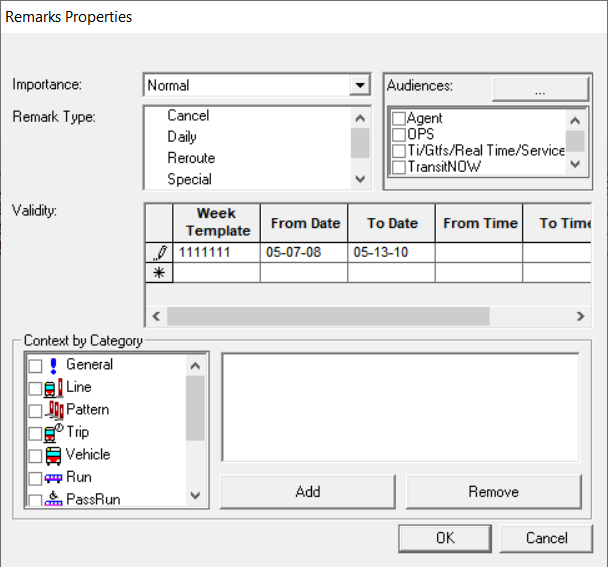
The Remarks Properties dialog opens.
-
In the Importance list, assign the level of importance of the
remark:
- High
- Medium High - warning
- Normal
- Medium Low - minor
- Low
-
In the Remark Type field, click the type of remark you are creating. Some examples are:
Cancel: 110 - #25 is canceled from 10:00 am to 12:00 pm due to lack of operators.
Reroute: 152 Vancouver is rerouting due to construction on Gaglardi Way until further notice.
Special: The Lost Property office will be closed at 16:00 today due to a staff meeting.
- In the Audiences frame, select the appropriate audiences.
-
In the Validity grid, create records that define the date and
time ranges within which the remark is valid. It is possible that you need more than one
record for cases where the remark is valid on different days of the week or even different
times, depending on the date.
- In the Week Template list, select the days of the week that the remark is valid.
- From the From Date calendar, select the date the remark is first valid.
- From the To Date calendar, select the end date of the remark’s validity.
- Optional: In the From Time field, type the start time of the remark’s validity and in the To Time field, type the end time of the remark’s validity.
- Optional: Repeat substeps a to d to create as many date ranges with the correct week templates and/or time ranges as you need.
- In the Context by Category field, select the category or categories to which the remarks applies. For example, your remark may fall into the Line and Pattern categories.
- Click OK. You are returned to the Remarks dialog.
- Optional: In the Title field, type a title for the remark.
-
In the text field below the Title field, type the text of the
remark.
You can include the URL of websites that have information to which you may want to refer. The system automatically changes the URLs into hyperlinks. When you click a link, your web browser launches the appropriate page.
-
Click the Save button:

If there are spelling errors, the Check Spelling dialog opens and displays them. Make the appropriate changes. The remark is added to the list on the left frame of the Remarks screen.