Arranging Tabs
Typically, the screens are shown with tabs and arranged in layers. You can choose, to display the screens in full vertically or horizontally.
- Click the tab you want to display differently and press and drag the left mouse button downward until a paper icon appears.
-
Release the icon.
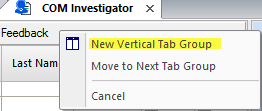
A menu appears.
-
Choose one of the following options:
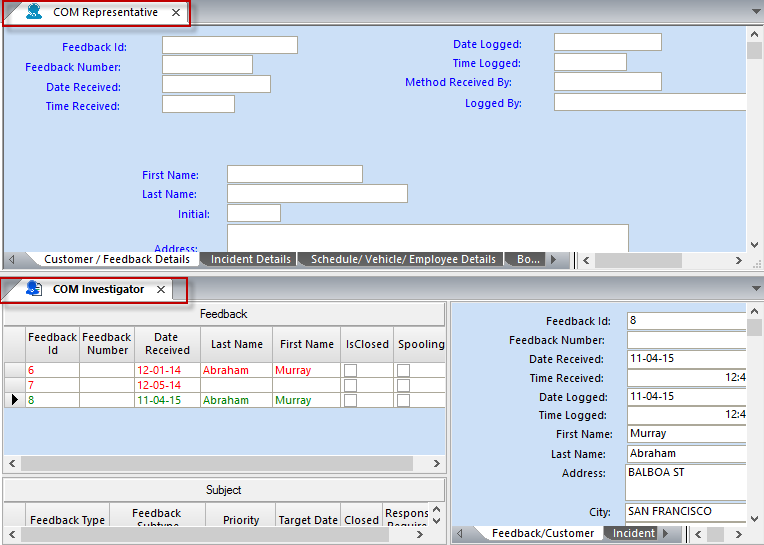
- New Horizontal Tab Group: The screens are opened and placed
on top of one another.
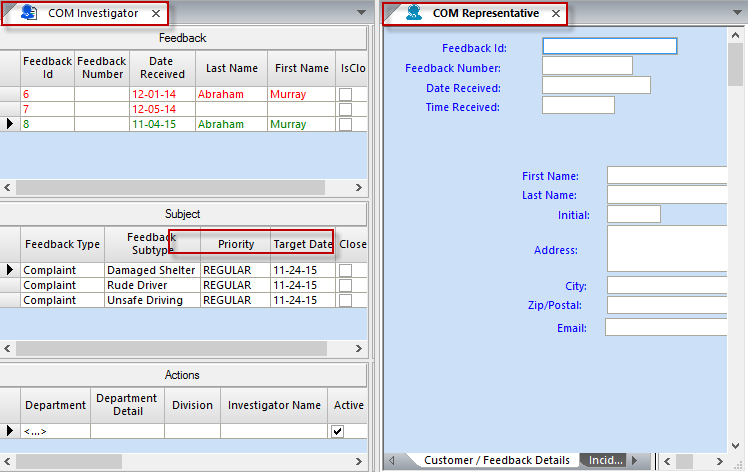
- New Vertical Tab Group: The screens are shown beside each
other.
- Cancel: No change is applied to the current arrangement of the tabs.
- New Horizontal Tab Group: The screens are opened and placed
on top of one another.
-
Repeat steps 1 to 3
to arrange the other tabs if required.
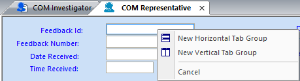
The menu only shows the option that you selected for the first tab. For example, if you selected the New Vertical Tab Group option in the menu, it is not shown in the menu for the other tabs as shown in the following graphic.