
Moving Tabs
After you have arranged your tabs, you can move the tabs before or after the tabs adjacent to it.
Do one of the following steps:
- Option 1
- Click the tab you want to move and press the left mouse button until a paper icon appears.
- Drag the icon down briefly and release.A menu appears.

- Perform one of the following options:
- To move the active before the tab on the left, click Move to Previous Tab Group.
- To move the active tab after the tab on the right, click Move to
Next Tab Group.
The tab moves to the desired location but the tab arrangement reverts to the default, that is, the tabs are arranged in layers.
- Option 2
- To switch the position of tabs, click and drag the tab to the position where you
want it. For example, click and drag the COM Representative
screen tab before the COM Investigator screen tab if you want
it shown first.
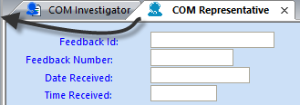
- To switch the position of tabs, click and drag the tab to the position where you
want it. For example, click and drag the COM Representative
screen tab before the COM Investigator screen tab if you want
it shown first.