
Logging on to DriverMate
Drivers must log on to access DriverMate features.
-
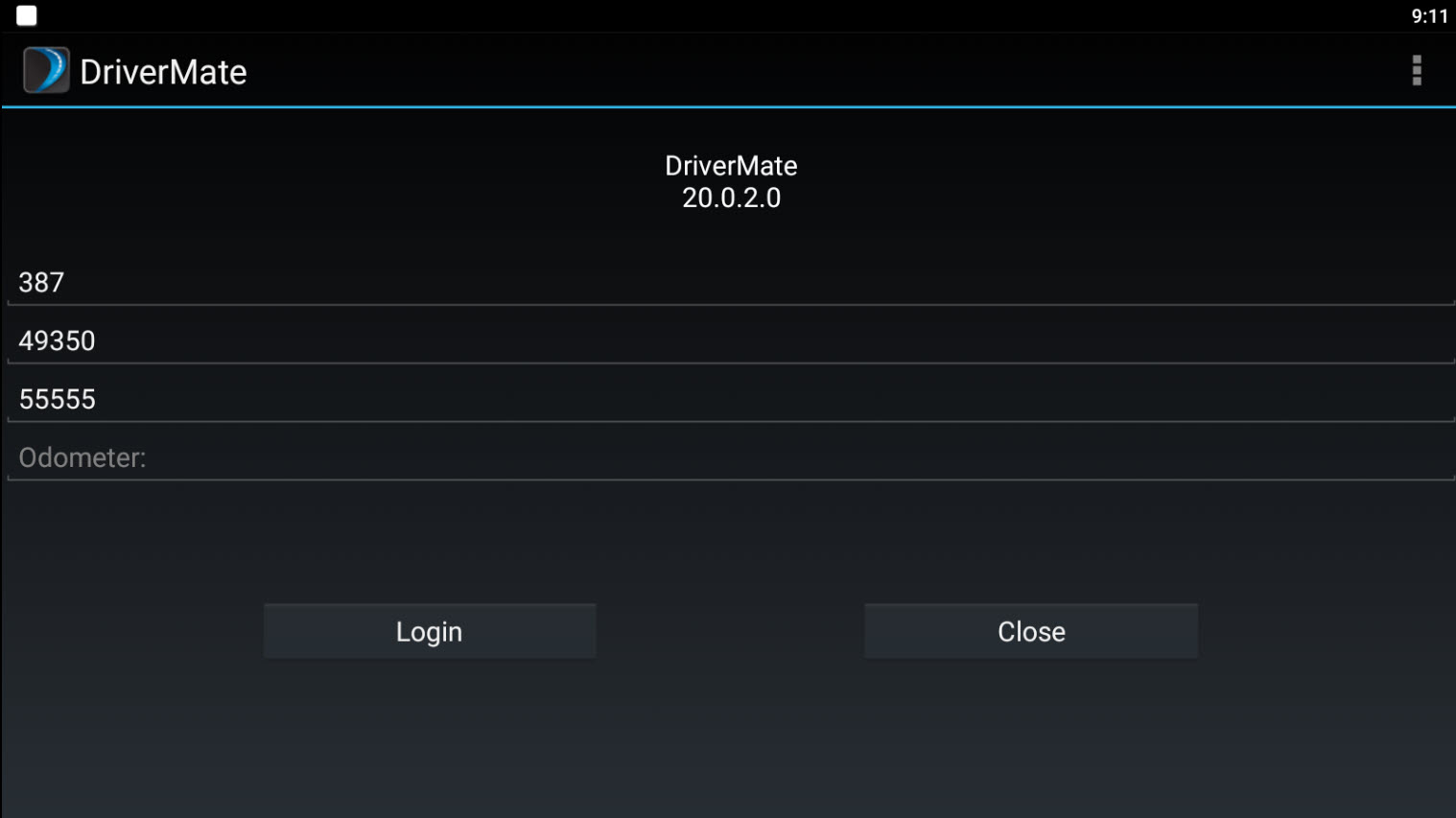
Open the DriverMate Login screen.
The procedure to do this may vary based on the device you use and your agency's configuration.
-
For Mobile Unit Id, enter the identification number from
Trapeze PASS or NOVUS.
This is generally the vehicle number.
- For Driver Id, enter your driver identification number.
-
For Pin, enter your personal identification
number.
This number may or may not be required by your agency for authentication.
- For Run, enter the name of the run you are performing.
- For Odometer, enter the current odometer reading.
- Tap Login.
-
A safety message is displayed. Tap ACCEPT if you can
operate the application safely. If not, tap
DECLINE.
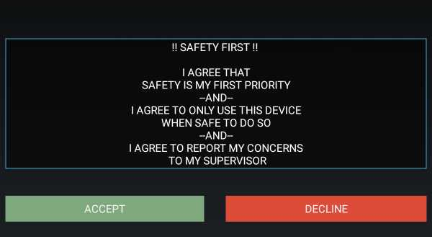 Note: If you decline the request, you will be sent back to the login screen.Once the safety message is accepted, a login message indicates that the system is establishing communication. If login fails, a message explaining the reason for the failure appears and you are returned to the Login screen.Note: For HIPAA compliance, the following log on fields will be cleared of previous entries if there is failure to log on or if the user logs off and attempts to log back on:
- Driver ID
- Run
- PIN