
Logging On Drivers (Using MDT Center)
When troubleshooting, you may find it necessary to log on a driver in MDT Center.
Procedure
-
Click the MDT Center button:

-
Click the Vehicle Status (Logon/Logoff) button:

The Vehicle Status (LogOn/Off) dialog box appears.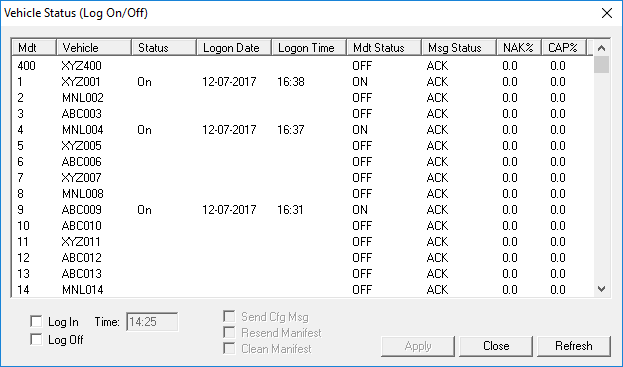
- Optional:
To sort the grid information, click the column header by which you want to sort the
information.
By default, the information is sorted by MDT ID.
- Click the vehicle to manually log on.
-
Select Log In.
The Time field is automatically populated with the current time. However, you can change the time as needed.
- Optional:
If you know that both the driver’s vehicle and the mobile computer are running, select
the following check boxes as applicable:
Select this... To do this... Send Cfg Msg Send the configuration message to the vehicle. If not selected, the log on information is relayed to the MDT Server only.
Resend Manifest Resend all trips to the vehicle and log the driver onto the system. -
Click Apply.
The Status field beside the selected vehicle shows Req LogOn.
- Click Refresh.