
Sending Canned Messages to Drivers from MDT Center
Canned messages are written in advance and selected from a set list.
Before you begin
About this task
Procedure
-
Click the Send Message button:

The Send Messages to MDTs dialog box opens.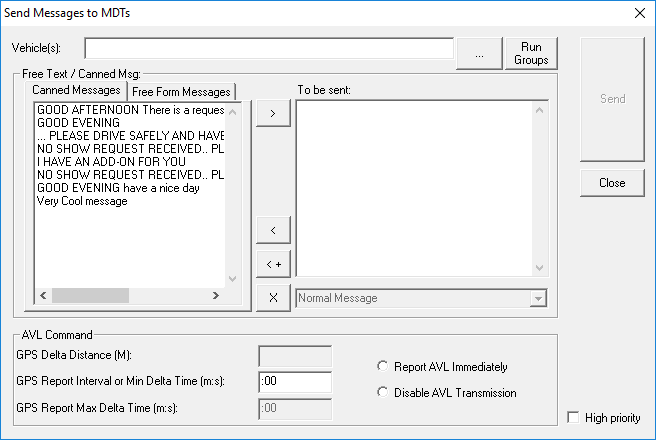
The Message Type field below the To be sent field is only activated (appears unavailable in the graphic) if you selected the Message Type field in the MDT Server Interface Properties dialog box. The field is only available in the MDT Server Interface Properties dialog box if you use Trapeze mobile equipment.
-
Do one of the following:
- In the Vehicle(s) field, type the vehicle numbers. If you are sending to multiple drivers, separate the numbers with a comma.
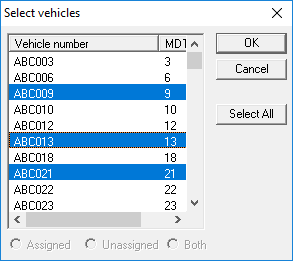
- Click the ellipsis button (…) to open the Select vehicles
dialog box. Choose the vehicle numbers you want and click
OK.
- Click Run Groups to open the Select Run Groups dialog box. Select the run groups to which to send messages. (Select the All Users check box to view all runs including non-global run groups.) Click the right-arrow button to show the runs in the run group. Select the runs to be included in the message (click Select All to send the message to all runs in the run group). Click OK.
The selected vehicle numbers appear in the Vehicle(s) field.
- Select a Canned Message.
-
Click the right arrow button:

The message appears in the To be sent field. - Optional:
To remove a message from the To be sent field, highlight the
message and click the left arrow button:

-
Click Send.
A message appears confirming that the message has been submitted for broadcasting.
- Click OK.
- Click Close.