
Resolving Paraservice Area Rules Violations
When paraservice area rules are violated, they can be handled in a few different ways.
Before you begin
About this task
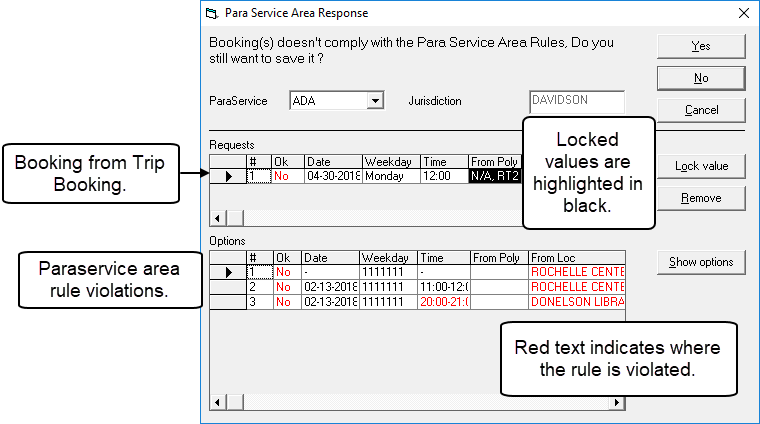
- The selected service (ParaService) type for the booking. For example, ADA.
- The Jurisdiction polygon of the client's home address.
- The Requests grid, where the requested bookings are shown.
More than one booking can be shown if, for example, if you have created a casual booking which is to occur on multiple days.
- The Options grid, where the rules for the selected service type are
shown. The Ok column indicates if rules are violated:
- Yes
- (in green) indicates rules are not violated.
- No
- (in red) indicates a rule that is violated
Data in other columns (for example, Time) identify the actual values for each rule that conflict with the booking.
Procedure
-
(If there is more than one requested booking in the Requests
grid) In the Para Service Area Response dialog box, highlight the
appropriate booking.
The Options grid shows rules violated for that specific booking.
- Optional: In the ParaService list, click another service type, and then click Show Options to check if assigning the new service type still incurs violations. If you find a service type with which the trip complies, return to Trip Booking and click it in the Paraservice list.
- Optional:
Check for violations related to From Polygon and To Polygon values.
- Optional:
To hide violated rules or specific values, do the following:
-
Click Lock Value.
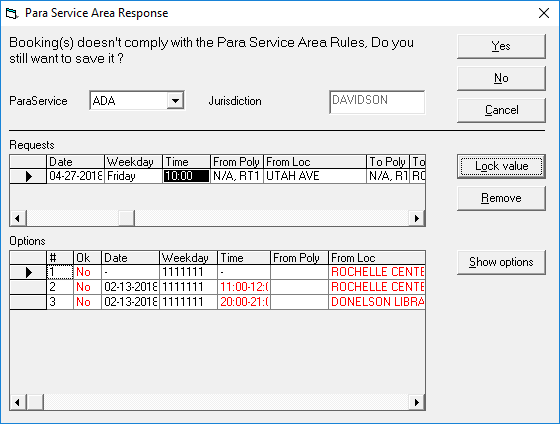
-
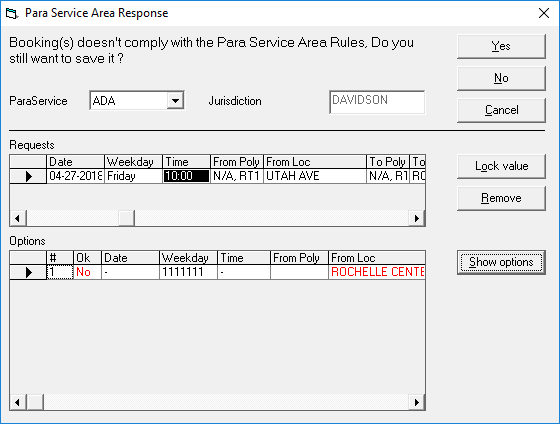
Click Show options.
The Options grid removes any violations resulting from a conflict due to the locked value.
-
Click Lock Value.
-
Once you have identified where the violations occur, do one of the following:
- Click Yes to save the booking as it is despite violations.
This option is not available when the Override Paraservice Area Rule Security property (under Trip Booking) is activated.
- Click No or Cancel to edit the
booking to avoid incurring violations.
These options cancel the save activity and return you to Trip Booking.
- Click Yes to save the booking as it is despite violations.