
Configuring Address Matcher
Address Matcher allows you to geocode addresses.
About this task
Procedure
-
In the Trapeze6 Client Shell, click .
Depending on how your system was set up, Properties may be found in a different location.The Properties tab opens.
-
Set and save the following properties:
- Property
- Value
- MmsMap ODBC DSN.
If left blank, the DSN defined in the *.profile file will be used.
- MmsMap ODBC DSN. If left blank, the DSN defined in the *.profile file will be used.
- MmsMap ODBC DSN.
If left blank, the DSN defined in the *.profile file will be used.
- Directory location for the Trapeze Map files.
For example, C:\Trapeze\Map.
- Type a list of comma-separated values for any address matchers used.
For example, T4, LOC, BUS if TP4Classic, Location, and Bus Stop address matchers are used.
T4 should be included in the list.
- AddrMatchTp4ClassicIf dependencies are used, define their values as needed.Change the DepId to 1.
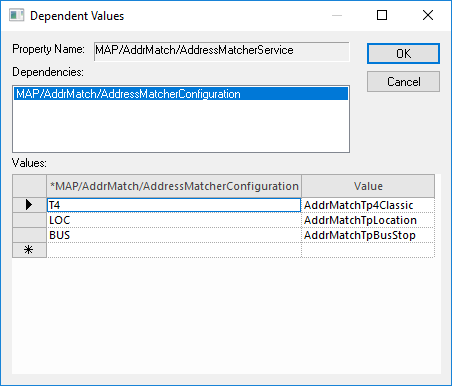
-
Address Matchers can be further configured using Param options.
For example, for the properties, you can do the following:
- Property
- Description
- UseLocation
- Select to match location names as well as addresses and intersections. Typically, UseLocation is selected.
- UseNumber
- UseStreet
- UseCross
- UseCity
- UseZip
- UseState
- Select to match data entered using Numbers, Streets, Cross (cross streets), City, Zip (zip codes), and so on. Typically, City, Zip, and State are cleared.
- UseGeocode
- Select to use geocoded latitude and longitude coordinates.
- Log on to the Trapeze4 Workstation.
-
Click .
The Properties dialog box appears.
- On the Profile tab, expand Services and select Host address.
- In the Host address field, type the IP address of the server.
- Select IP Port and change the default port number to the one used by the Service Shell running Address Matcher.
- Select Service Profile, and then type the profile name used by the ODBC database connection.
- Click to close Trapeze4 Workstation.
- Launch the workstation again to allow the changes to take effect.