
Setting Configuration System Properties for the Trapeze4 Workstation
Specific system properties must be defined when configuring the Trapeze4 Workstation.
Before you begin
Procedure
-
Click .
The Properties dialog box appears.
- Click the Profile tab.
-
Click .
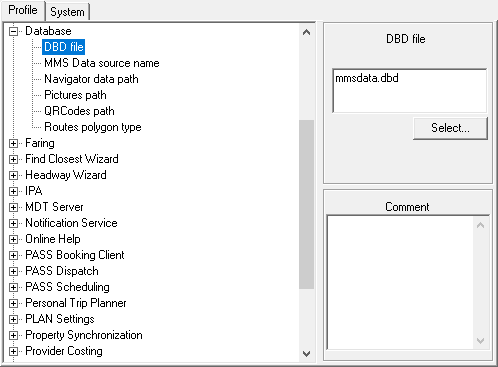
The DBD file field is visible on the right side of the Properties dialog box.
-
Type mmsdata.dbd.
Trapeze recommends keeping the mmsdata.dbd file in the Config folder and using the relative path. The system will automatically look for the mmsdata.dbd file in the Config folder.
To specify a different file path, click Select. In the Look in list in the Open dialog box, navigate to and select the MmsData.dbd file, and then click Open. The full path, starting with the drive letter, appears in the DBD file text box.
- Optional:
Add a Comment about the DBD file
entry.
You can add comments for any system property or user-defined property in the Trapeze4 Workstation.
- Click .
-
Click the MmsData ODBC data source in the list.
An ODBC connection to your database must exist on the system. If no ODBC connections exist, then there will be no options in this list.
-
Click and do the following:
- Click .
-
Click the MmsMap ODBC data source in the list.
Depending on your system setup, this may be the same as the .
- Click .
-
In the DBD file field, type
mmsmap.dbd.
Trapeze recommends keeping the mmsmap.dbd file in the Config folder and using the relative path. The system will automatically look for the mmsdata.dbd file in the Config folder.
To specify a different file path, click Select. In the Look in list in the Open dialog box, navigate to and select the MmsMap.dbd file, and then click Open. The full path, starting with the drive letter, appears in the DBD file text box.
- Optional: Click and set a value that matches your map book's pages in order to show them on the screen.