
Viewing Runs on the System Map
For every run in a schedule, the system assigns a different color used for display on the system map.
Procedure
- Do one of the following:
- Click .
- Press Ctrl + M.
- Click the System Map button:

The system map appears. - Click .
- Click the Display Runs button:

Runs view appears. - Select the run.
- In the Color column, look at the color assigned to the run.
-
Click the Display on the Map button:

The itinerary of the run appears on the system map (highlighted in the assigned color). Each event is labeled with numbers starting from 1 (that is, the first event on the run) to 2 (that is, the second event), and so on.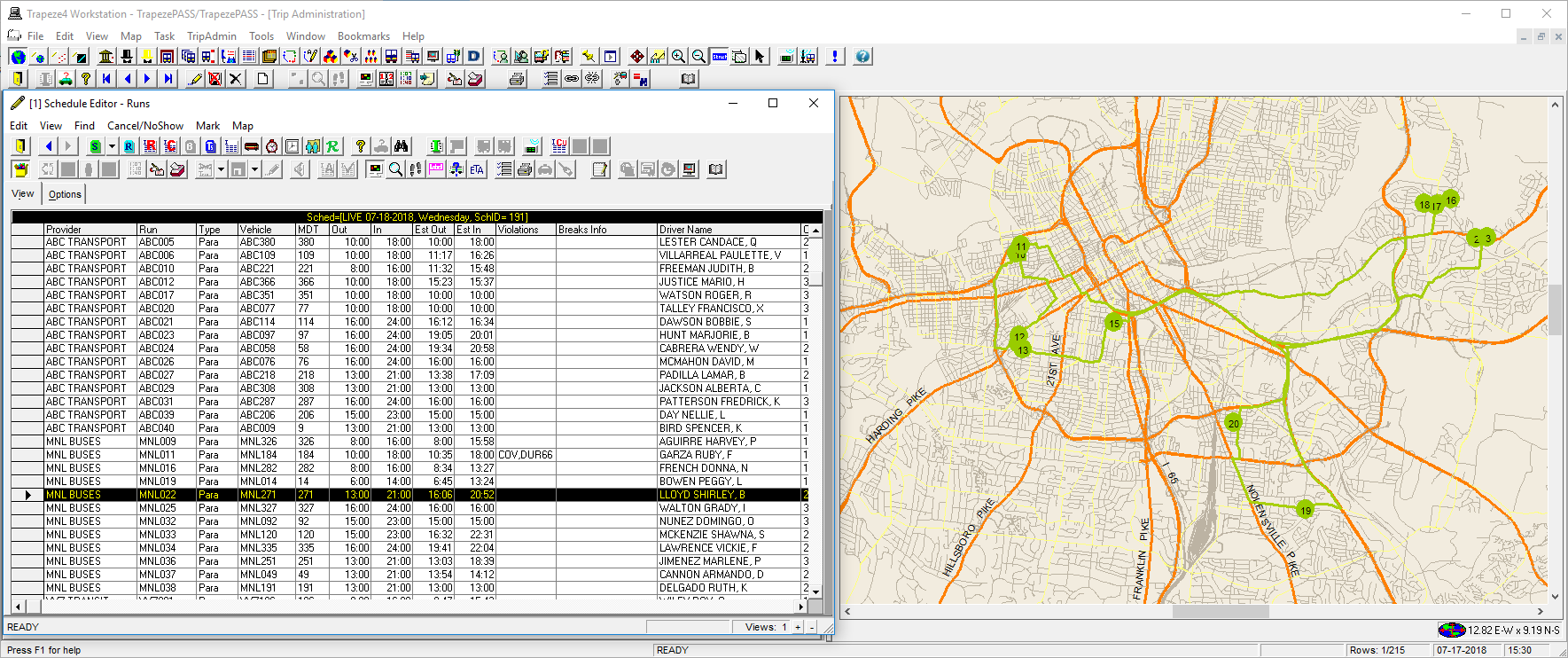
In this example, the property found in , on the Tools tab, under is set to Yes.
- Optional:
If AVL data is available, click the ETA button:

The vehicle location appears on the map.