
Viewing Passengers Transported and Trips Made per Hour

You can view the passengers transported on different runs in a schedule.

Before you begin

Schedule Editor must be open to Schedules view.

About this task

Because this view shows runs in real time, it is useful to dispatchers for allocating vehicle space for client requests.

Procedure

  1. Select a schedule in the grid.
  2. Click the Passengers Count button:
    Two blue people on a yellow square.
    You can access Passengers Count view from most other views. The information returned is for the originally selected schedule.
    The number of passengers transported within 15-minute, 30-minute, or hourly intervals for a given schedule is shown. By default, the Report Interval is set to one hour.
    Note: Only runs with reported passengers are included. Scheduled runs that have not yet transported clients do not appear in Passengers Count view.
  3. Click the Switch trips/passenger mode button:
    A red and blue person icon.
    Passenger count becomes trip count and the number of trips made per hour is shown.
  4. Optional: Change the report interval as needed:
    1. Click the Options tab.
    2. In the Passenger Count frame, choose a new time interval in the Report Interval list.

Results
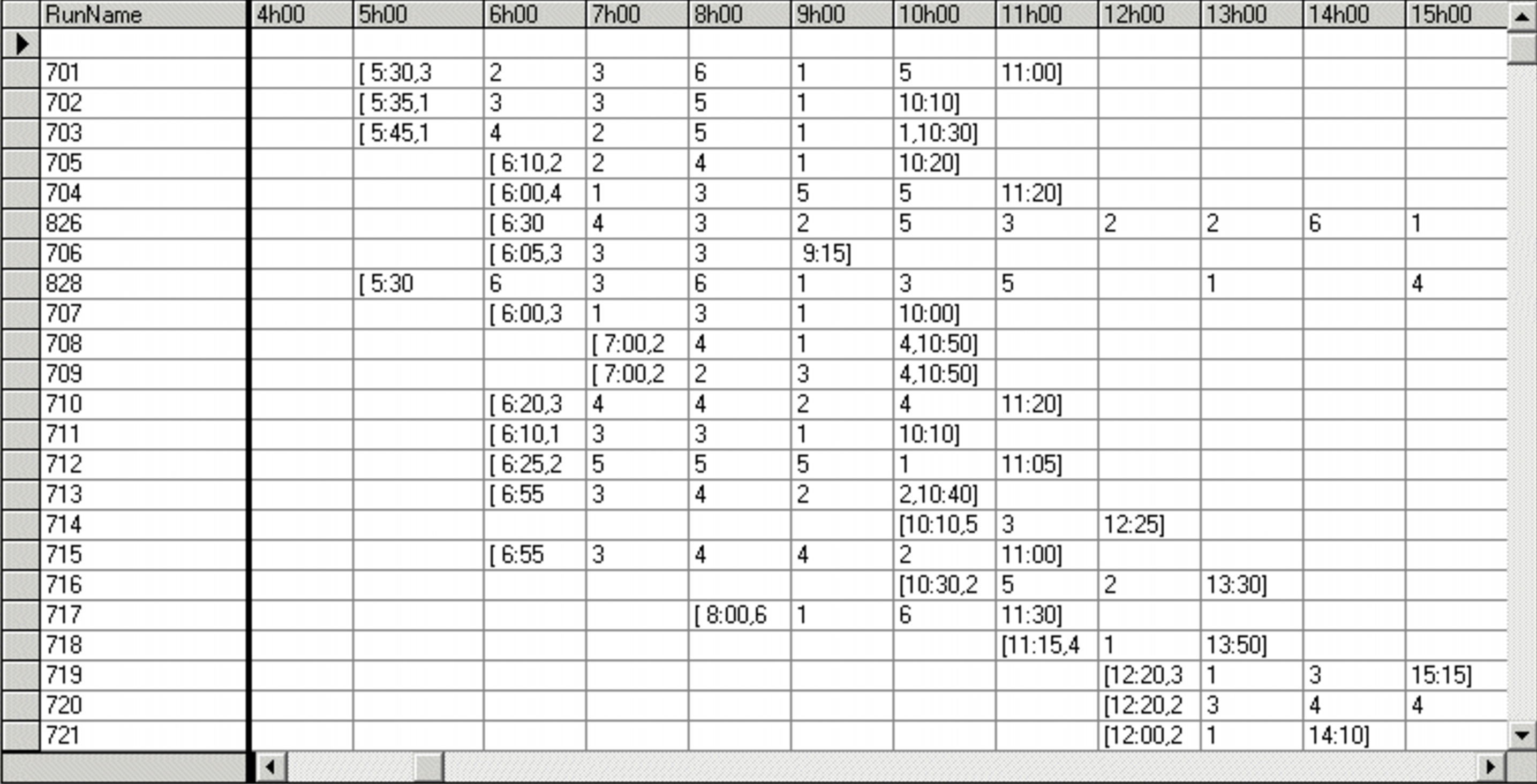
Passenger Count view is shown in a time grid that begins at 0:00 (midnight) and continues for as long as the last drop-off for the longest run. As a result, the grid can go past 24:00. The runs are listed in the far-left column. Information contained within the grid contain the number of passenger/trips taken in the given hour interval, with the exception of pull-out and pull-in periods where the field contains the exact time of either the pull-out, or pull-in. The passenger/trips in a given hour interval are also shown. If you place your mouse pointer over a chosen field, a tooltip appears to show extra information about that hour interval.
Passenger Count view with the number of passengers grouped by hour.