
Viewing Driver and Vehicle Information
Driver and vehicle information can be viewed from Trip Administration.
Before you begin
About this task
Procedure
- Search for and select a trip booking.
-
Click the Show Driver/Vehicle Information button:

The Driver/Vehicle Information dialog box appears.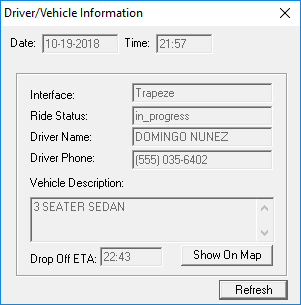
Displayed information cannot be edited.
-
View the driver and vehicle information.
- Date
- Date of the trip.
- Time
- Interface
- Interface providing the information. Typically, this is
Trapeze.
If the Trapeze Trip Broker Lyft Plug-In is used, Lyft the interface may be Lyft.
- Ride Status
- Current status of the trip.
Ride status can be one of the following: scheduled, processing, accepted, arriving, in progress, completed, driver canceled, rider canceled, dispatcher canceled, no drivers available, unacceptable price change, or no show.
- Driver Name
- Name of the driver assigned to the run.
- Driver Phone
- Mobile phone number for the driver. Defined in , on the General tab.
- Vehicle Description
- Vehicle type associated with the vehicle assigned to the run.
- Pick Up ETA/Drop Off ETA
- A PickUp ETA or DropOff ETA is shown when a vehicle is en route to a pick-up or drop-off location.
- Show On Map
- If AVL data is available, the location of the vehicle is shown on the map.
Clicking on different trips in Trip Administration or Schedule Editor updates the information shown in the Driver/Vehicle dialog box. - Optional: To update the available information (for example, Ride Status), click Refresh.