
Assigning Work
In addition to creating pararuns, you may also be concerned with assembling a weekly roster that drivers can pick.
About this task
Procedure
-
Click the Assign Work step button:

The Assign Work step appears.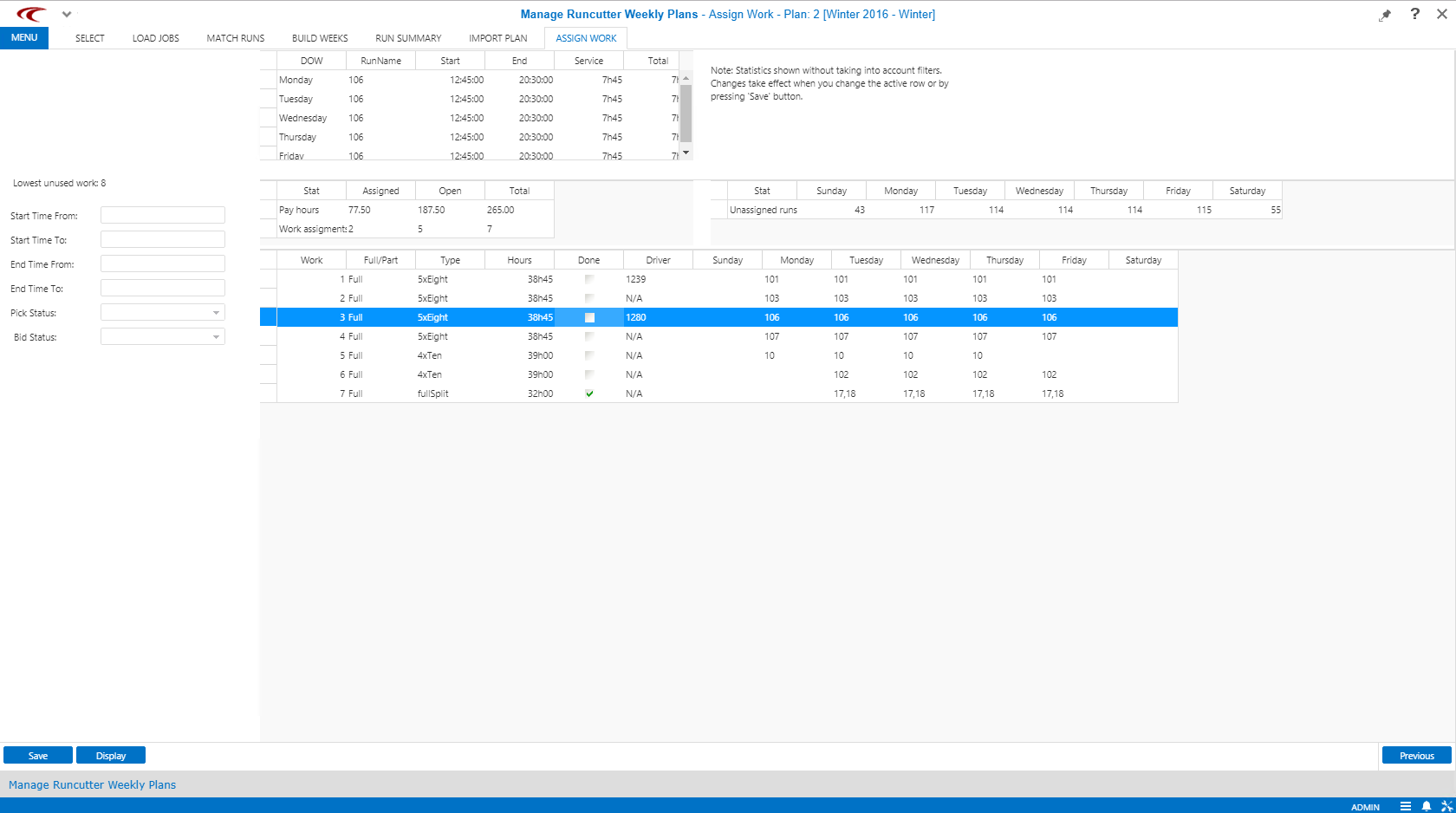
-
Fill in or select the appropriate option in the filter fields:
- Pullout Time From
- Earliest start time.
- Pullout Time To
- Latest start time.
- Pullin Time To
- Earliest end time.
- Pullin Time From
- Latest end time.
- Pick Status
- Status of work whether assigned or not: All,
Done, Not Done.
The default is All.
You can change the status of individual rosters in the results pane. For example, if you click Not Done and you select the Done check box of a record in the grid later, that record disappears when the view is refreshed. This allows you to see only your unfinished work.
- Bid Status
- Status of work whether run has been assigned to a driver:
All, Unassigned,
Assigned.
The default is Unassigned.
If Assigned is selected, only work assigned to a driver is shown. If Unassigned is selected, only work with no driver is shown.
- Click Display.
- Click Save.
Results
- The only editable columns on the primary grid are: Full/Part,
Type, Done, and
Driver.
To make bulk edits (for Full/Part, Type and Done), press CTRL while selecting the work rows to be updated. Right-click on one of the work rows and click Edit Record(s).
- The value in the Full/Part column defaults to
F.
You can type F for full-time or P for part-time.
- The check boxes in the Done column are not selected by default. You can select them to indicate that the bid item is complete, which you should do when you have gotten the weekly total as close to 40 hours as possible. This is a way to flag it as not needing further attention when preparing a bid.
On the grid in the top section of the right pane, daily run details are shown for the work assignment highlighted in the main grid. (See the row highlighted in blue in the graphic.)
The value in the Service column corresponds with the Pay value in the Build Weeks step.
The Total column represents the full time elapsed from pull-out to pull-in, including lunch breaks.
The Pay amount shown in the main grid for the work assignment represents the sum of the Service hours from the detail grid.

On the middle section of the right pane, the two grids show the following data:

- Pay Hours and Work Assign
- In these rows, the values in the Assigned column indicate those
associated with an employee and those under the Open column are
those that have not been assigned to an employee.
The Total column shows the total number of hours for all runs that are part of the work assignment.
- Unassigned runs
- Shows the number of unassigned runs for each day of the week.