
Loading Runcutter Jobs
After creating a new plan, you can fill it with runs from various runcut solutions.
Procedure
- In the Select step, click the job to load.
-
Click the Load Jobs step button:

The Existing Jobs column shows the identity of jobs that are currently loaded.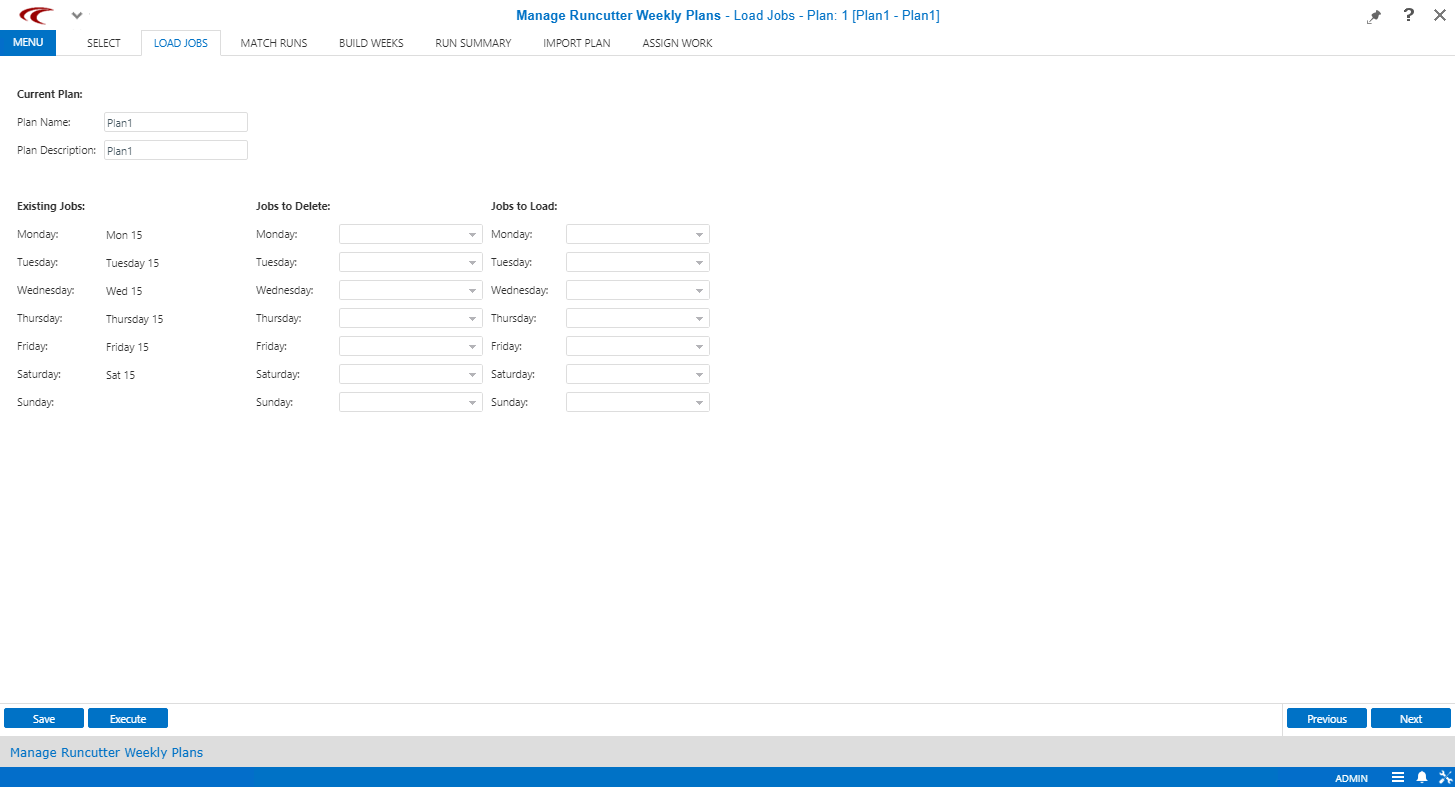
-
In the Jobs to Delete column, select any previously loaded job
data to delete.
Delete job data if it is to be removed or replaced
-
In the Jobs to Load column, review the list of ParaCutter jobs
and assign one or more jobs to each day.
For example, you might select Base and Tue Topup to load for Tuesdays.
If a job is loaded into Monday, Wednesday, and Friday, then each shift in the selected runcut job will get copied as three separate rows into the ParaCutterShifts table, one for each selected day of the week.
-
Click Execute.
The shift data is copied from the jobs into the weekly plan.
This screen can also be used to delete existing job run records without loading new ones.