
Adding and Removing Menus and Menu Items
Menus can be edited by adding and removing menu items.
Before you begin
Procedure
-
At the bottom right of any screen click the Customize Menu
button:

The Links - workspace/main dialog box appears.The Available Links pane on the left contains all available menus and menu items. The Current Links for pane on the right contains all menus and menu items that are available for users in the current user group. Menu names appear in bold text.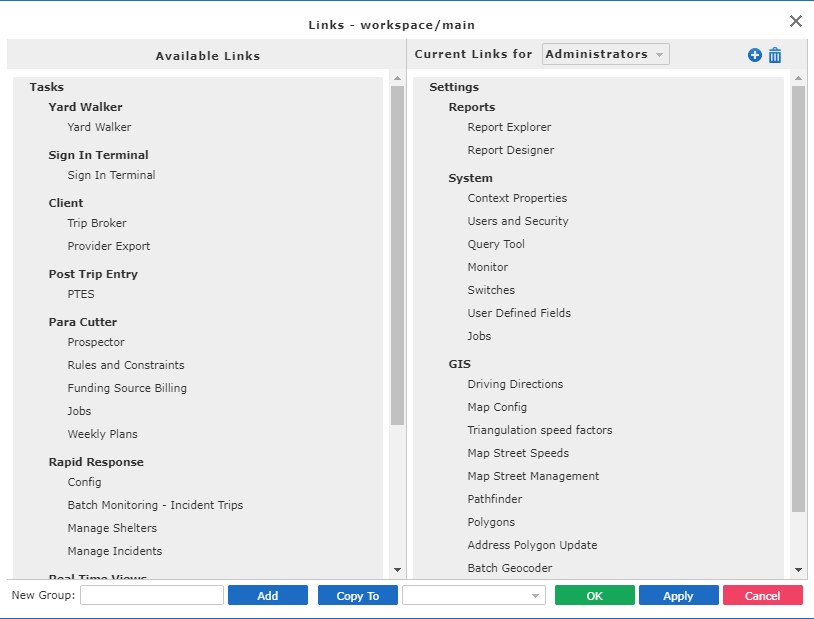
-
Perform the following steps as needed:
-
To add one or more menus or screens, select the items in the Available Links pane and drag them to the Current Links For pane.
- To create a new menu, enter the menu name in the New Group field and click Add beside the New Group field.
The menu or screens appear at the bottom of the Current Links For list. -
- Optional:
Click the Remove All button.

All existing menus and screens are removed. - Optional:
Click the Add All button.

All existing menus and screens are added.