
Changing the Appearance of Grid Columns
You can change the color, border, and font size for the columns in the currently selected grid.
Procedure
-
In the grid, right-click and click Edit Layout.
A dialog box appears.
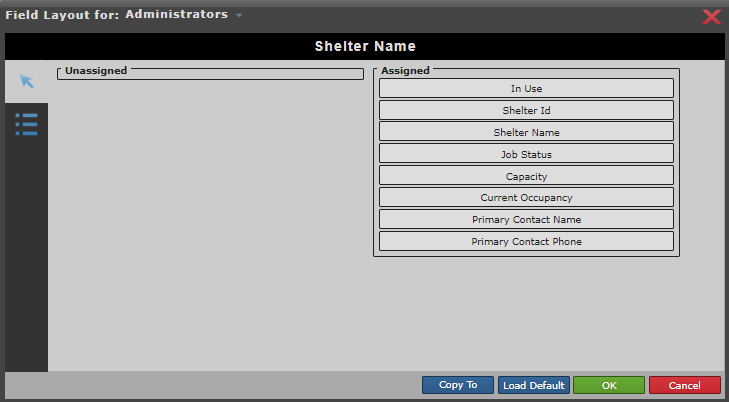
- Select a user group from the Field Layout for drop-down list.
-
In the Assigned list, select a column name.
The selected column name replaces No Field Selected.
-
Click the Properties button:

- On the General tab, specify a new heading for the column using the Caption field.
-
Define Caption, Input, and
Display settings as desired:
Option Description Text style Click buttons to underline, italicize, and bold the caption. Horizontal text
alignment
Click buttons to align the header to the left, center, or right. Vertical text
alignment
Click buttons to align the header to the top, middle, or bottom. Borders Click the buttons as needed to place horizontal and vertical borders around the caption. Optionally, you can click the Apply to All button to apply the settings from one border to all other borders or fields.
Font Select a font from the list. Font size Select a text size from the list. Width Enter the width for the caption. Height Enter the height for the caption. Text Color Select the text color. Background Color Select the background color. Options on the Caption tab define how column headings should appear.Options on the Display tab define how text shown in the grids should appear. - Optional: Click Load Default to revert back to the default appearance settings.
- Optional: Click Copy To to select user groups to which to apply the new column order.
- Click OK.