
Assigning Unscheduled Trips
Assign an unscheduled trip by dragging it from the upper pane and dropping it onto a provider run itinerary in the lower pane.
Before you begin
About this task
When a trip has been assigned to a provider, it moves from the
Unscheduled list to the Assigned list in the
Provider Status Summary pane. The trip is automatically stamped with
the providerId of the run onto which it was placed and appears only if the assigned provider
is selected in the Provider list.
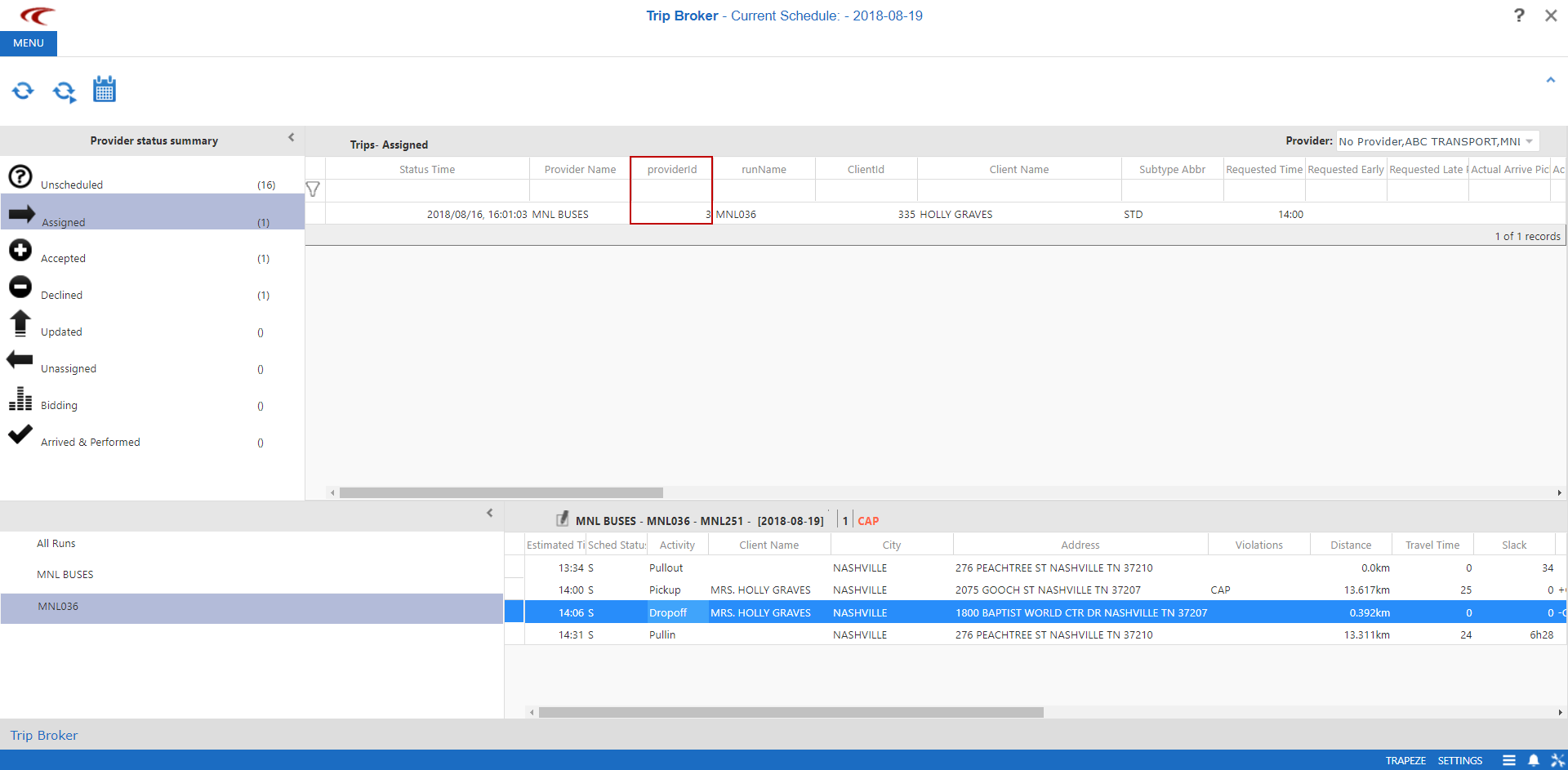
The provider name, run name, vehicle name, date, number of trips, and
violations are visible in the Details grid for the selected run
itinerary.

If a run that already belongs to a provider is assigned to another provider, it is updated with the provider ID of the new run onto which it was placed.
Procedure
-
Show a run itinerary by doing one of the following:
- In the Runs pane, click All Runs to view runs for all selected providers and then double-click a run.
- In the Runs pane, click a run.
The run itinerary appears in the Details pane (the lower-right pane). - Optional:
To return to the list of runs for the provider, click the provider's name in the
Runs pane.
You can then select another run for which to view an itinerary.
-
In the Provider status summary pane, click
Unscheduled.
A list of unscheduled trips appears in the Trips pane.
- Drag the trip to be assigned from the Trips pane and drop it into the run’s itinerary.
-
In the Provider status summary pane, click
Assigned to view all trips that have been assigned to a
provider.
The provider must be selected in the Provider drop-down list.
- Optional: To re-assign a trip, from the list of Assigned or Accepted trips, drag and drop the trip to the new provider's run itinerary.