
Marking Trips as Arrived or Performed
Marking trips as arrived (when the vehicle has arrived at the client’s pick-up location) or performed (when the client is on board and being transported to his or her requested destination) notifies the dispatch center and partner sites that an assigned trip is being carried out.
Before you begin
About this task
Trips cannot be marked as Arrived or Performed until they have been accepted. However, trips can be canceled or marked as no-show even if the trip has not been accepted.
Trips are marked as Arrived or Performed on the day that they are traveled.
Procedure
- In the Runs pane, open the itinerary of the run to which the trip was assigned.
- Optional:
Mark a trip activity as arrived:
-
In the Details pane, right-click the trip activity and click
Arrived.
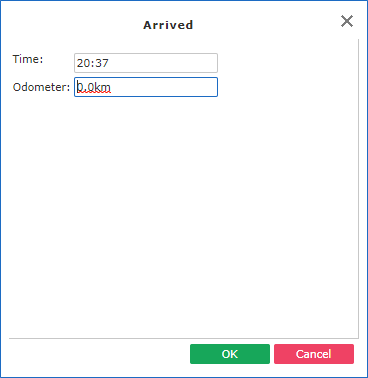
The Arrived dialog box appears.
-
Click OK.
In the run’s itinerary, the trip’s activity status is shown as A.

-
In the Details pane, right-click the trip activity and click
Arrived.
- Optional:
Mark a trip activity as performed:
-
In the Details pane, right-click the trip activity and click
Perform.
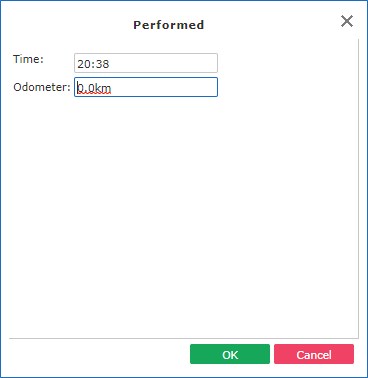
The Performed dialog box appears.
-
Click OK.
In the run’s itinerary, the trip’s activity status is shown as P.

-
In the Details pane, right-click the trip activity and click
Perform.
- Click the Arrived & Performed status to view all trips that have been arrived or performed.