
Changing the Appearance of Fields
You can change the font, alignment, and background color of the field labels in the Points and Work Orders screens.
- Click a field on the screen that you want to edit.
-
In the Filter dialog, click the View Properties button:
 The View Properties window appears. The following graphic shows the Signup field selected on the Points screen and properties associated with its appearance shown on the View Points window.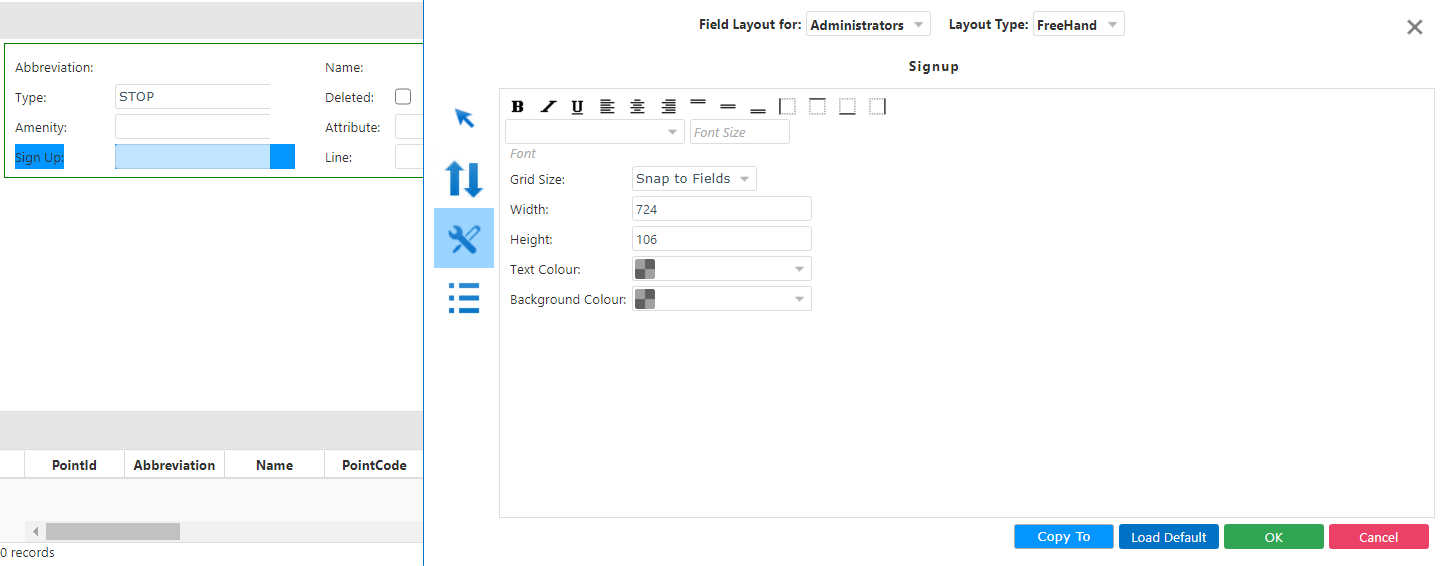
- In the Font drop-down list, select the font that you want, for example, Arial.
- In the Font Size drop-down list, select the size of the font that you want, for example, Small.
- In the Width and Height fields, enter the appropriate values for the size you want of the row where you want the field located.
-
To change the color of the text and background of the fields, perform one of the
following steps in the Text Color and Background
Color fields:
- Type the hexadecimal color code of the color in the field.
- Click the field. In the color palette that appears, click the color that you want.
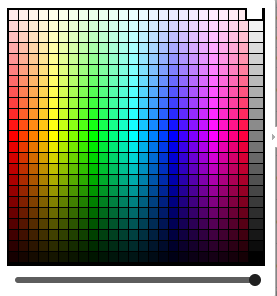
To apply hue and saturation variations of the color you want, move the slider at the bottom of the color palette until you get the variation you want.
- Click OK.