
Editing Field Properties
You can edit the name and description of a field including its accessibility and display mode.
- On the Points or Work Orders screen, click the field that you want to edit.
-
Click the Properties button:
 The General tab opens by default in the Properties window. Information associated with the selected field are shown on the tab. The following graphic shows the values that apply to the Sign-up field: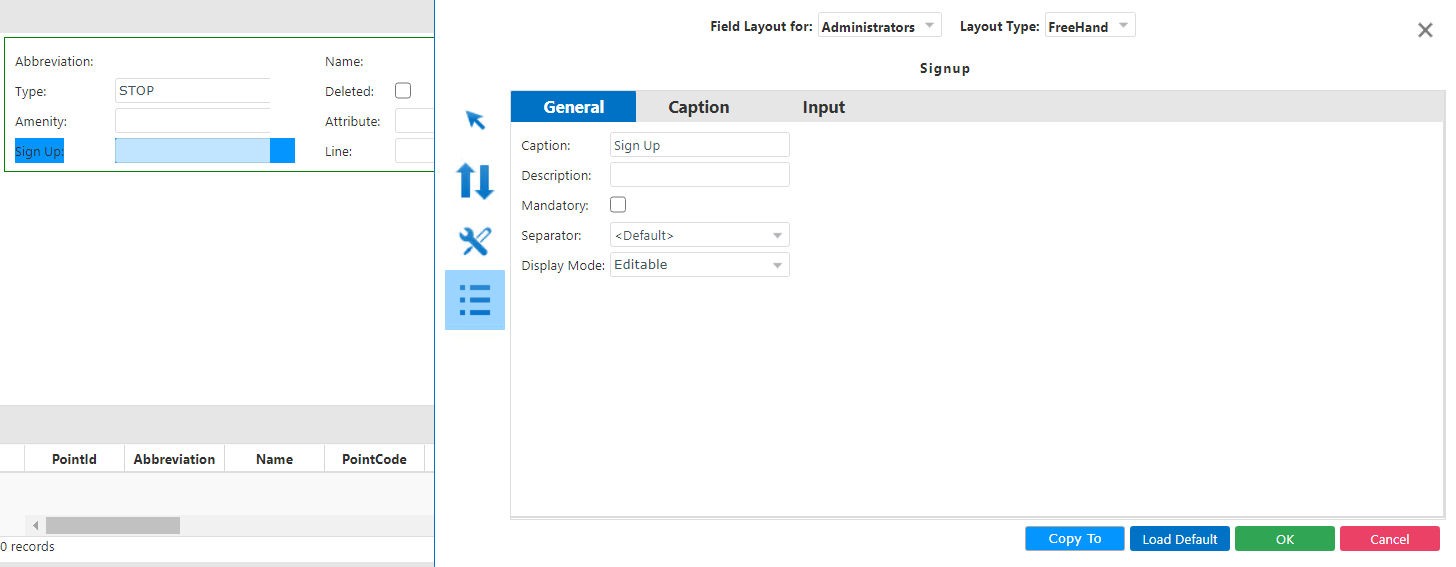
-
Make the changes to the following fields as required:
- Caption - Name of the field.
- Description - Information that explains use or purpose of the field.
- Mandatory - If selected, the field must be filled in.
- Separator - Choose one of the following options: Default, None.
- Display Mode - Choose one of the following options: Editable, Read Only, Disabled.
- Optional: To make changes to the appearance of the field, click the Caption tab.
- Click OK.