
Using the Blocking Tool
The Blocking Tool is one of the FX Tools used in Trapeze FX. It allows you to check and assign or reassign garage pull-out/pull-ins to your Blocked data.
-
Click Graphical Runcutting > Blocking
Tool.
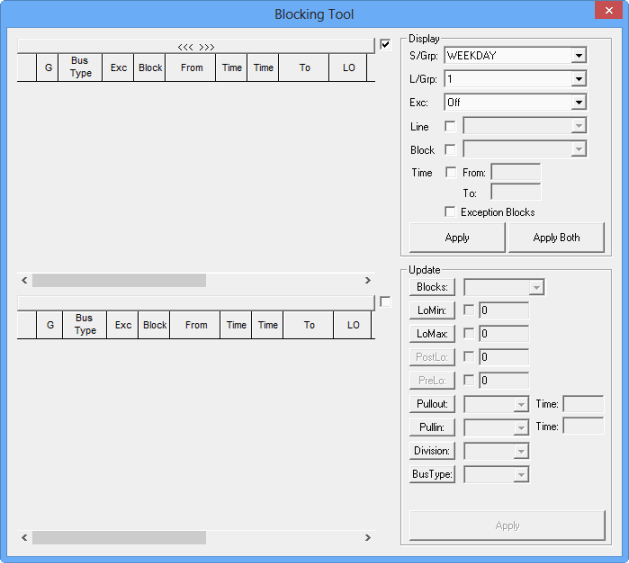
The Blocking Tool dialog appears.
-
In the Display frame, the data of your current
context appears in the
Service
Group, Line Group and
Exc (Exception) fields. If you do not use exceptions at your
site, the Exc is always set to Off by default.
By default, the check box on top right corner of the grid is selected. The Apply button in the Display frame is activated.
-
Click Apply in the Display frame. Your selections apply to the grid that has the check box in
its top right corner selected.
To display the same data in both grids, click Apply Both.
- Select one or more of the following options:
- Line: If selected, choose a specific line from the Line list. (The line must belong to the line group in the L/Grp field.)
- Block: If selected, choose a specific block from the Block list. Time: If selected, type the time range in the From and To fields.
- To apply exceptions that are associated with the block or time range you selected, select the Exception Blocks check box.
- Click Apply. The data matching your settings appears in the grid with the check mark.
- In the Update frame, click Blocks and from the list, select the appropriate block.
- Optional: To change the layover values, click LoMin (Minimum Layover) or the LoMax (Maximum Layover) field. and select the check box beside it and type the value you want in the field.
- Click Pullout and from the list, select the appropriate garage. Perform a similar procedure in the Pullin field. Based on the Deadhead data for the selected Service Group, the Pull Out and Pull In times appear in the Time fields. If necessary, overwrite the times in the Time fields.
- Click Division and from the list, select the appropriate division.
- Click Bus Type and from the list, select the appropriate bus type.
- Click Apply.